
If WPForms collects leads, applications, or intake on your WordPress site while your team manages those records in Airtable, you should not need to export CSVs or configure Zapier for a one-way sync.
This guide walks through connecting WPForms (Lite or Pro) to Airtable with Integration for Airtable: install, authenticate, map fields, choose immediate or background delivery, then confirm each run in Sync History. No Zapier, Make, or custom webhook required.
Why people look for WPForms to Airtable
- Contact and quote forms land in email; someone re-types them into an Airtable CRM every morning.
- A Zapier path works until tasks run out, a field rename breaks the Zap, or a silent failure goes unnoticed for days.
- You want Airtable views, Interfaces, and Automations fed by live WPForms data instead of a weekly CSV dump.
WPForms does not need to become your database. Airtable can stay the operational layer. WordPress only needs a reliable handoff on submit.
What you need
- WordPress 5.9+ with PHP 8.0+ (see the plugin listing for current requirements)
- WPForms Lite or WPForms Pro installed, with at least one published form
- An Airtable account and a base and table ready for records. Airtable’s free plan is enough to start.
- Integration for Airtable installed and activated
No Zapier account or separate WPForms add-on is needed. Integration for Airtable detects WPForms directly from WordPress.
WPForms to Airtable, step by step
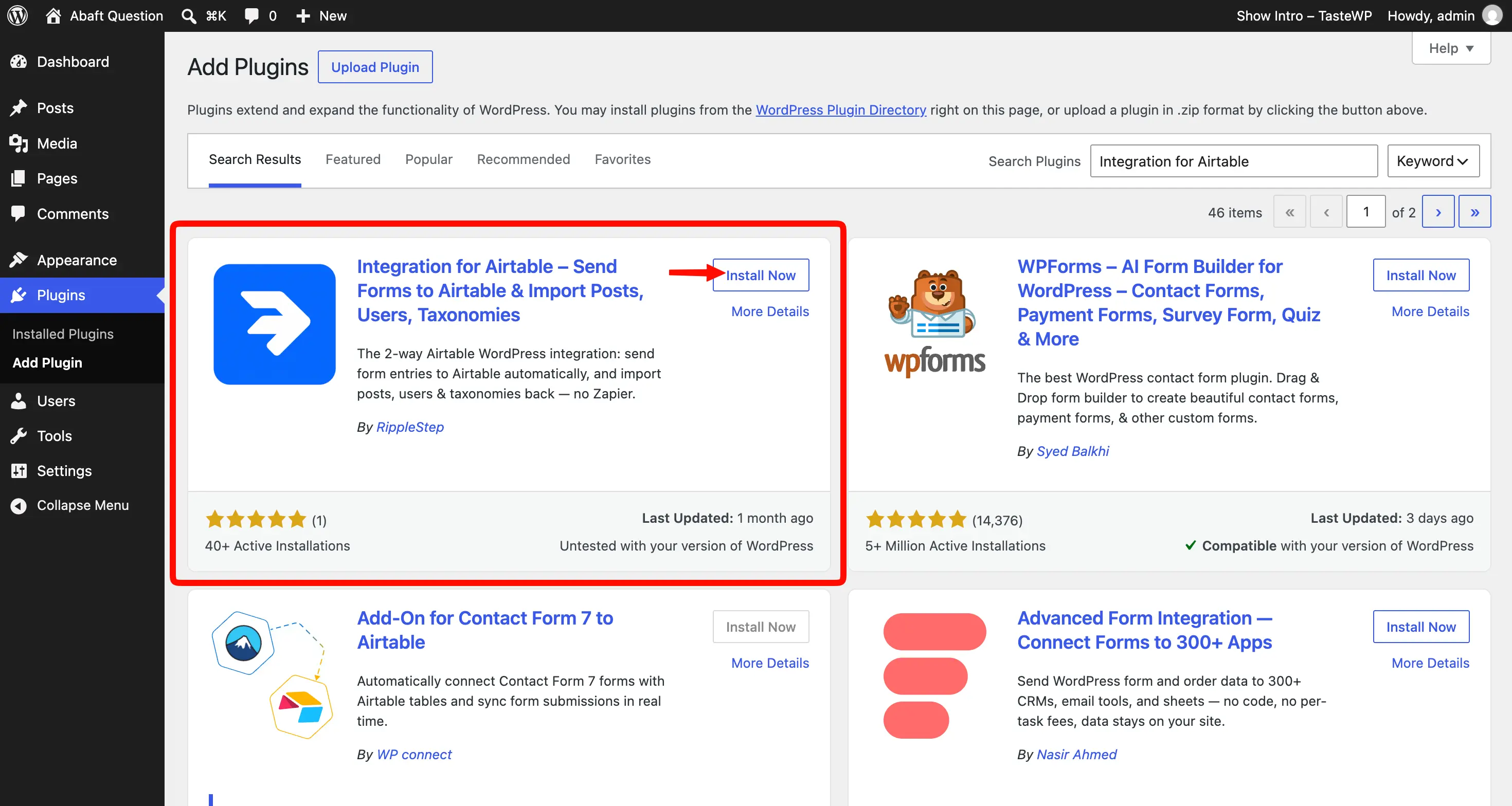
- Go to Plugins → Add New, search for Integration for Airtable or Airtable RippleStep, then install and activate
- Confirm the Airtable Sync menu appears


Go to Airtable Sync → Airtable Config. You can connect to Airtable using either OAuth, which lets you sign in to Airtable and choose which bases to share and is recommended for most sites, or a Personal Access Token (PAT), which you create in Airtable and paste into WordPress. Choose your preferred connection method and follow the steps below.
OAuth is the easiest and most secure method. You authenticate on Airtable’s site and control exactly which bases the plugin can access.
- Click Connect with Airtable
- Sign in to the Airtable account that can access your target base
- Choose whether the plugin can use specific bases or everything you have access to, then click Grant access
- You return to WordPress automatically. Confirm the status shows Connected via OAuth
You can change base access later in Airtable’s integration settings if you need to.
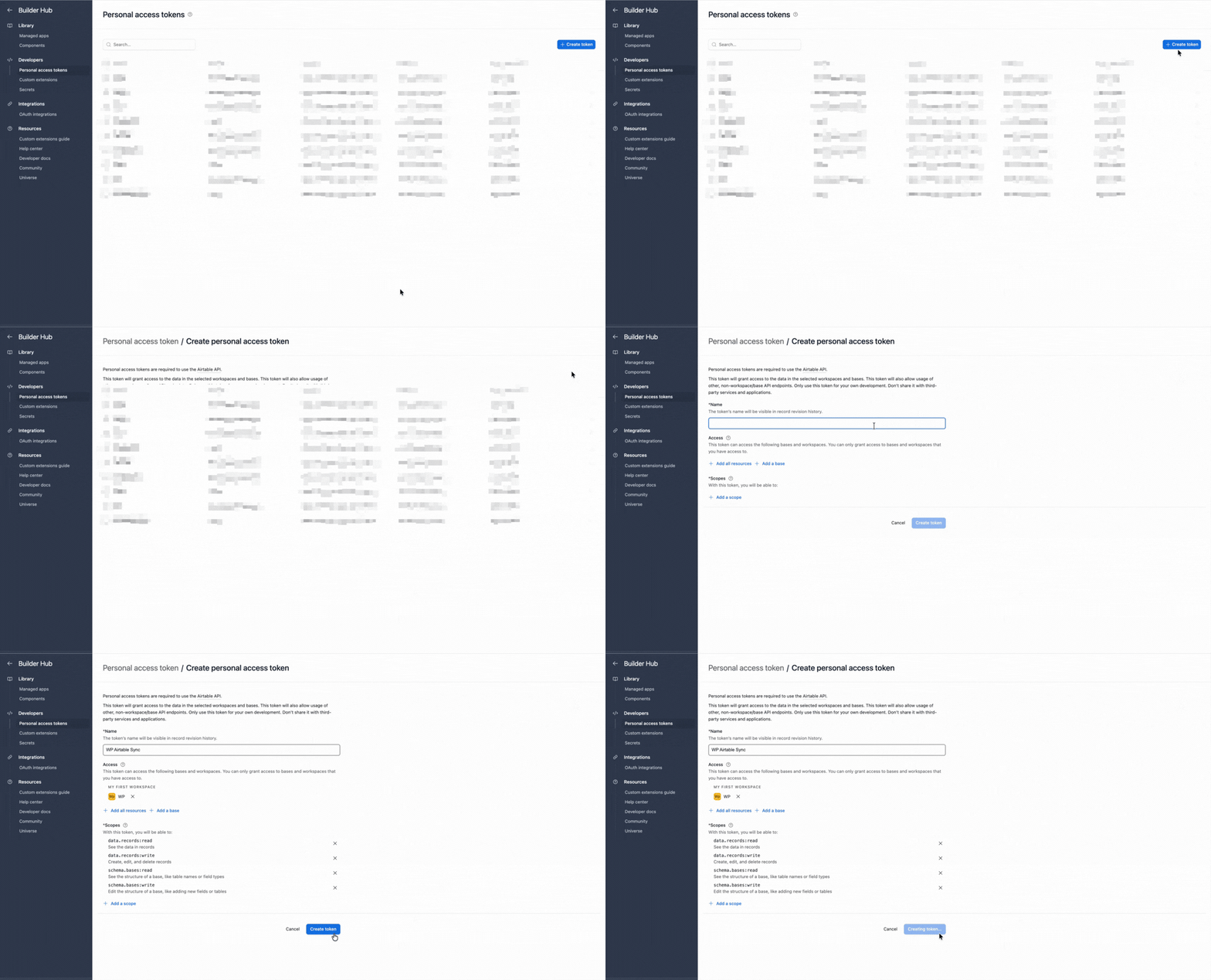
Use a PAT if you prefer a token you create and manage yourself, or if OAuth is not available for your setup. The token must include write scopes and Access to the base you will sync into.
- In Airtable, create a personal access token
- Add scopes:
schema.bases:read,schema.bases:write,data.records:read,data.records:write - Under Access, include the base you will sync into

- Click Use a personal access token, paste the created PAT into the plugin, then save

- If verification fails, re-check
data.records:writeand base Access, then save again
A form connection links one WPForms form to one Airtable base and table. When someone submits that form, the plugin creates a row in that table. Free allows one active connection; Pro supports more.
- Go to Airtable Sync → Forms
- Click Add connection (or the equivalent new-connection control)
- Set the form builder to WPForms
- Choose the published form you want to sync
- Select the Airtable base and table, or use Create new table if you do not have one yet
- Continue to field mapping in the next step before you rely on production submissions
The form must already exist and be saved in WPForms. If it does not appear in the list, open it in WPForms, save it, then reload the Forms screen.
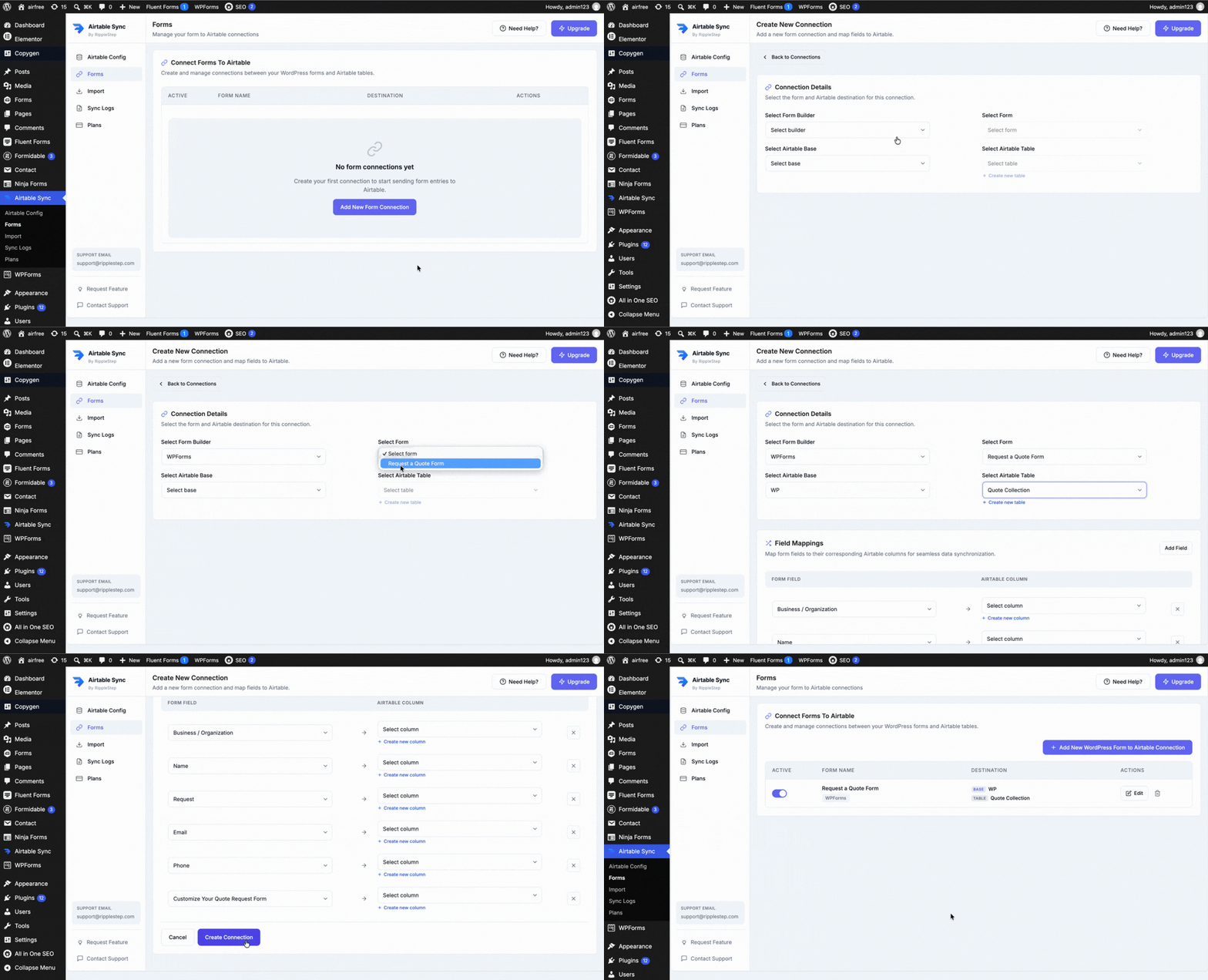
Mapping tells the plugin which WPForms field value should land in which Airtable column. On each submit, only mapped fields are written to Airtable. Unmapped fields still submit on the form; they simply stay out of Airtable.
- In the connection editor, open the field mapping section
- For each WPForms field you care about, choose the matching Airtable column from the dropdown
- If no column exists yet, use Create new column, then map to it
- Skip fields you do not need in Airtable
- Save the connection when the pairs look correct
Use matching types so Sync History does not fail. Common pairs:
Single select options must match Airtable choices exactly. If you add or rename a WPForms field later, save the form in WPForms first, then reopen the connection and map the new field.
- Submit the form with known test values
- Confirm success in Airtable Sync → Sync Logs, then check the row in Airtable
If Sync History errors, fix scopes, base access, or column types before go-live.
Send the error text and a screenshot to support@ripplestep.com. We’ll help you identify what failed.
Common WPForms to Airtable workflows
01Lead CRM-lite
Contact forms into an Airtable Leads table with a Status select, and Interfaces for SDRs.
02Quote requests
Map budget and service checkboxes; an Airtable Automation can notify Slack when budget is high.
03Job applications
WPForms file upload (Pro attachment sync where available) plus fields into a hiring board.
04Event registration
One row per attendee, with Airtable views by session date.
05Multi-site agencies
One WordPress site per client, each with its own Airtable base (Pro unlimited connections).
Keep operational fields (owner, stage, “worked?”) as Airtable-only columns. Do not require them on the public form.
Free vs Pro
| Capability | Free | Pro |
|---|---|---|
| Form connections | 1 active | Unlimited |
| Successful form syncs | Up to 300 / month | Unlimited |
| Field mapping | Core mapping | Same, higher volume |
| Delivery | Immediate or WP-Cron | Same |
| Sync History | Yes | Yes |
Start on Free to validate mapping. Upgrade when you need more than one connection, more than 300 syncs a month, or Pro-only extras such as attachment sync where available. Pricing lives on the WordPress Forms to Airtable product page. Pro is $99/year.
Troubleshooting
Choose the symptom you see to view the likely cause and next step.
Sync History shows an error after submit
Read the error text for a missing data.records:write scope, missing base Access, or an Airtable field type mismatch. Update authentication under Airtable Sync → Airtable Config, or correct the Airtable column type, then submit again.
Sync succeeds, but Airtable cells are empty
Confirm the empty fields are mapped and that WPForms submitted values for them. Re-open the form connection and map each missing field. Conditional fields may be blank when their conditions are not met.
A form field is missing from the mapper
Make sure the field has been saved in WPForms. Save or update the form, then reload the Forms connection so the plugin can read the latest fields.
The form confirms, but no Airtable row appears
In Sync History, look for a queued or failed background sync. Confirm WP-Cron is running, or switch delivery to immediate while debugging.
The Free plan limit has been reached
Free supports one connection and 300 successful syncs per month. Reduce test submissions or upgrade on the Forms to Airtable product page.
FAQ: WPForms to Airtable
Does this work with WPForms Lite?
Yes. Integration for Airtable works with WPForms Lite and WPForms Pro. You do not need a paid WPForms license solely to sync to Airtable.
Can I connect WPForms to Airtable without Zapier?
Yes. The plugin calls Airtable’s API directly after a WPForms submission. No Zapier, Make, or webhook middleman is required for this workflow.
Where do I check if a WPForms submission reached Airtable?
Open Airtable Sync → Sync Logs. Every form sync attempt is logged with success, warning, or error detail. Then confirm the row in your Airtable table.
How many WPForms forms can I sync on the free plan?
Free includes one active form connection and up to 300 successful form syncs per month. Pro unlocks unlimited connections and syncs.
What Airtable scopes does a Personal Access Token need?
For write syncs: schema.bases:read, schema.bases:write, data.records:read, and data.records:write, plus Access to the target base. OAuth is recommended if you prefer not to manage a PAT manually.
Will checkbox or multi-select answers break Airtable?
They sync when the Airtable column type can accept the formatted value. Prefer a text column for combined checkbox strings unless you have mapped into a select type that matches your choices.
Can each WPForms form go to a different Airtable base?
Yes with Pro (unlimited connections). On Free, keep a single active connection and point it at one base and table at a time.
Does background sync require anything on the server?
Background delivery uses WP-Cron. If your host disables WP-Cron, configure a real cron job to hit WordPress on a schedule, or use immediate delivery.
Next steps
- Install Integration for Airtable free from WordPress.org.
- Map one WPForms form and confirm a success row in Sync History.
- When you outgrow one connection or 300 syncs a month, see Forms to Airtable.
Also useful
- WordPress ↔ Airtable: overview of sync, forms, and import paths
- Import from Airtable: bring Airtable records into WordPress
- Other builders: Gravity Forms and Ninja Forms
Send the error text and a screenshot to support@ripplestep.com. We’ll help you identify what failed.
Stop re-typing WPForms into Airtable
Install the free plugin, map one WPForms form, and confirm the first success row in Sync History.
Install Integration for Airtable free