
Connect vs migrate
Shopify’s help articles are about leaving Square’s website. You move the catalog into Shopify once, and Square Online stops being the store.
Keeping both is a different job. Square stays the POS. Shopify stays the online store. SquareFloww copies products, stock, and customers between them. A shirt you sell at the counter on Saturday has to come off the website. A catalog you imported last month does not know about that sale.
If you are leaving Square’s website, use Shopify’s migrate steps. The shop can stay on Square. You will still want the counts to match after the import.
If you are keeping Square and selling on Shopify, keep Square POS and sell on Shopify. Does Shopify work with Square? Yes, once you connect them.
Before you start
What you’ll need
You need admin access to the Shopify store, and a Square account that already lists your shops. If “Main Street” is only a name the staff say out loud, add that location in both Square and Shopify before you try to match them.
Match items by SKU when both catalogs already use one. When the SKU box is empty, spell the title the same way on both sides. Clean up the obvious duplicates, like two rows both called Blue Mug, before the first sync.
Do that first sync while the shop is quiet. Midway through a sidewalk sale is a bad time to notice two locations were swapped.
What will sync
SquareFloww copies the title, the description, the price, and the photo with each product. Stock follows the shop you pair. A customer’s name, email, and phone can come from Shopify or from Square.
Day to day, this is the Shopify Square integration: products, inventory, and customers between the two.
How to sync Square with Shopify
You sync Square with Shopify after both accounts are connected. The app asks you to connect Square, match each shop, and choose which system your team edits. Then you import, export, and sync products, inventory, and customers between the two.
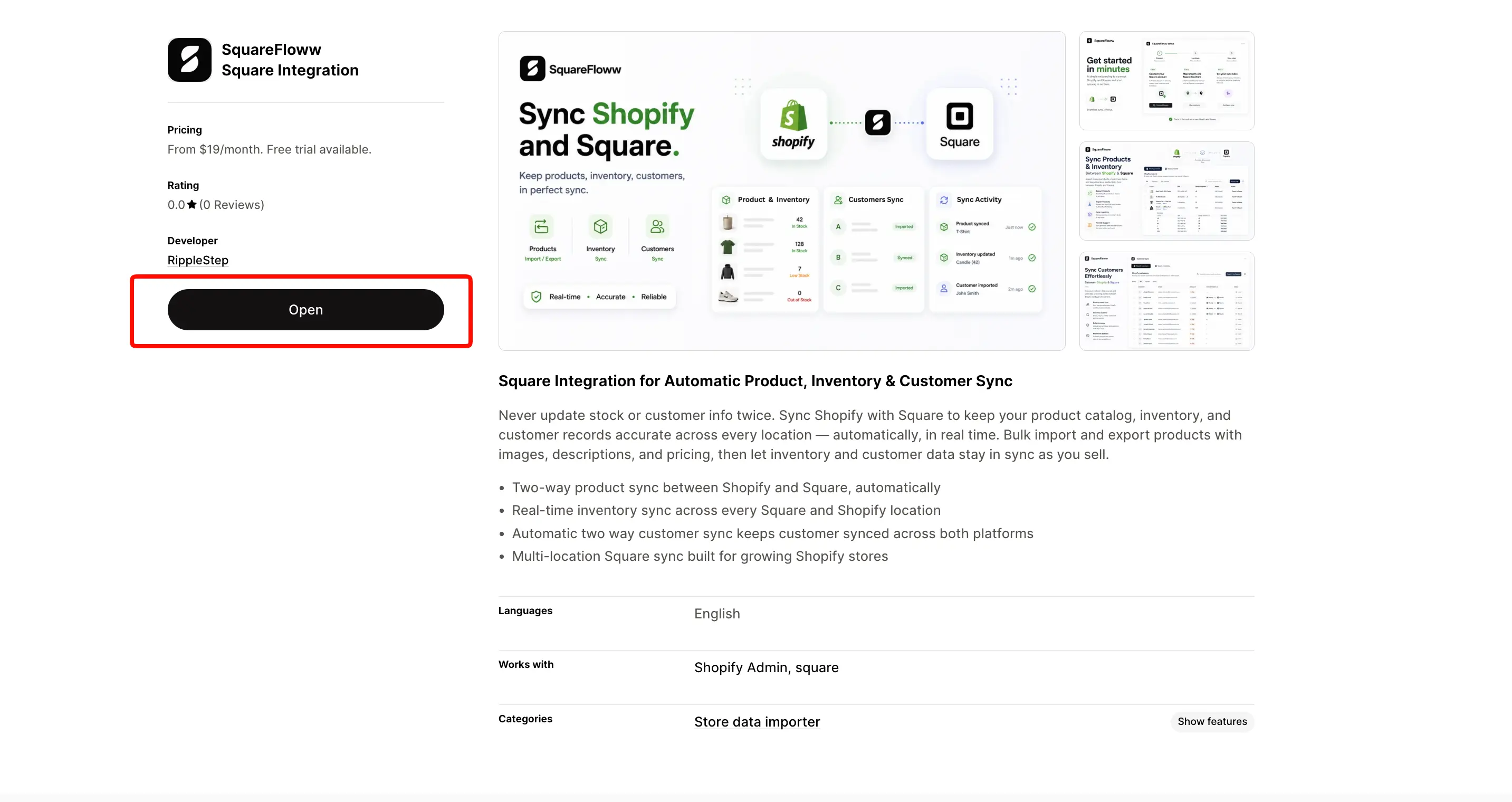
Open the SquareFloww listing and install it on the Shopify store you want to keep. Approve the access Shopify asks for. The 7-day trial starts there.
Click Connect Square. A Square sign-in page opens. Sign in with the account your shop already uses and approve the access. Square sends you back to this screen.

Match each Shopify location to the Square location for that shop. SquareFloww syncs those pairs, and import and export use them too. Add another pair if you have more than one shop.

Pick Shopify or Square, the store your team edits day to day. Changes there copy to the other store. Then choose which details copy: title, description, price, and photos.

If a product is only in Shopify, export it to Square. If it is only in Square, import it into Shopify. SquareFloww matches the SKU, or the title when the SKU is blank. Once they match, sync Shopify and Square products from the store your team edits, and sync Square inventory with Shopify for that shop.

If a customer is only in Shopify, export them to Square. If they are only in Square, import them into Shopify. Their name, email, and phone come along when you sync customers between Shopify and Square.

Which plan to start on
| Plan | Price | Products | Customers | Location pairs | Sync mode |
|---|---|---|---|---|---|
| Starter | $19/mo | 1,000 | 500 | 1 | Manual |
| Growth | $39/mo | 2,000 | 2,000 | 3 | Automatic |
| Pro | $79/mo | 10,000 | 10,000 | Unlimited | Automatic |
Starter fits one shop, and you press sync yourself. Growth fits two or three shops, and the sync can run on its own. Pro is for more than three shops, or a catalog near 10,000 products or customers.
Start the trial on the plan that covers the shops you have. Move up when you add another.
When Square and Shopify don’t match
You can’t find the shop in one list. Add that shop in Square or in Shopify, whichever is missing it. Then match the two.
The same item is still two items. Put the same SKU on both. If there is no SKU, spell the title the same way, then send it across again.
A price you fixed came back. SquareFloww copies from the store you chose to edit. Choose the store your team actually changes, then sync again.
A sale in the shop didn’t change the website. The count only moves for a shop you paired, and only after that product is linked. Pair the shop and link the product before you sync Square inventory with Shopify.