
Some documentation is a product in itself. Onboarding guides for paying customers. Advanced training content for premium members. Exclusive playbooks for enterprise clients. This content took real effort to create — it shouldn't be free for anyone who happens to find the URL.
The challenge is the tooling. Most teams write documentation in Confluence. But Confluence doesn't have a mechanism for gating content by membership tier on a public-facing website. WordPress does — through its user role system.
The setup: write your documentation in Confluence as you normally would, sync it to WordPress using Content Publisher for Confluence, and restrict each page to the WordPress user role that matches your membership tier. Members log in and see their content. Non-members see a login wall or a preview with an upgrade prompt.
"We write all our customer training content in Confluence and sync it to a gated WordPress portal. Customers get an account on signup, log in, and see exactly what their plan unlocks. We never touch WordPress to update content."
— Customer Success Lead at a B2B SaaS companyThe Architecture: How It All Fits Together
A members-only documentation site built on Confluence + WordPress has three layers:
Public Layer — No Login Required
Overview pages, feature previews, and getting started teasers. Visible to anyone. Indexed by search engines. Designed to convert visitors into members.
Member Layer — Login Required
Full documentation, tutorials, and reference content available to all registered members. Restricted to any logged-in WordPress user regardless of tier.
Premium Layer — Specific Role Required
Advanced guides, exclusive playbooks, and enterprise documentation restricted to members with a specific role — Pro Member, Customer, Enterprise, etc.
All three layers are powered by Confluence content, synced to WordPress. The difference is purely the access setting on each page — which you control from the Content Publisher dashboard.
What You Need Before Starting
Required
- Self-hosted WordPress site
- Atlassian Confluence Cloud account
- Content Publisher for Confluence Pro ($99/year)
Optional (depending on your use case)
- WooCommerce — if you want to sell memberships or charge for access
- Custom role plugin (e.g. User Role Editor) — if you need custom member tiers beyond WordPress defaults
- Login page builder — for a branded login experience instead of the default WordPress login screen
Building the Site: Step by Step
Before touching WordPress, organise your Confluence space to mirror your membership tiers. Create parent pages for each tier: Public Docs, Member Docs, Pro Docs. Under each parent, write the relevant content.
This structure makes it easy to select pages by tier when configuring access in the plugin — instead of setting access page by page, you can work through your tier sections systematically.
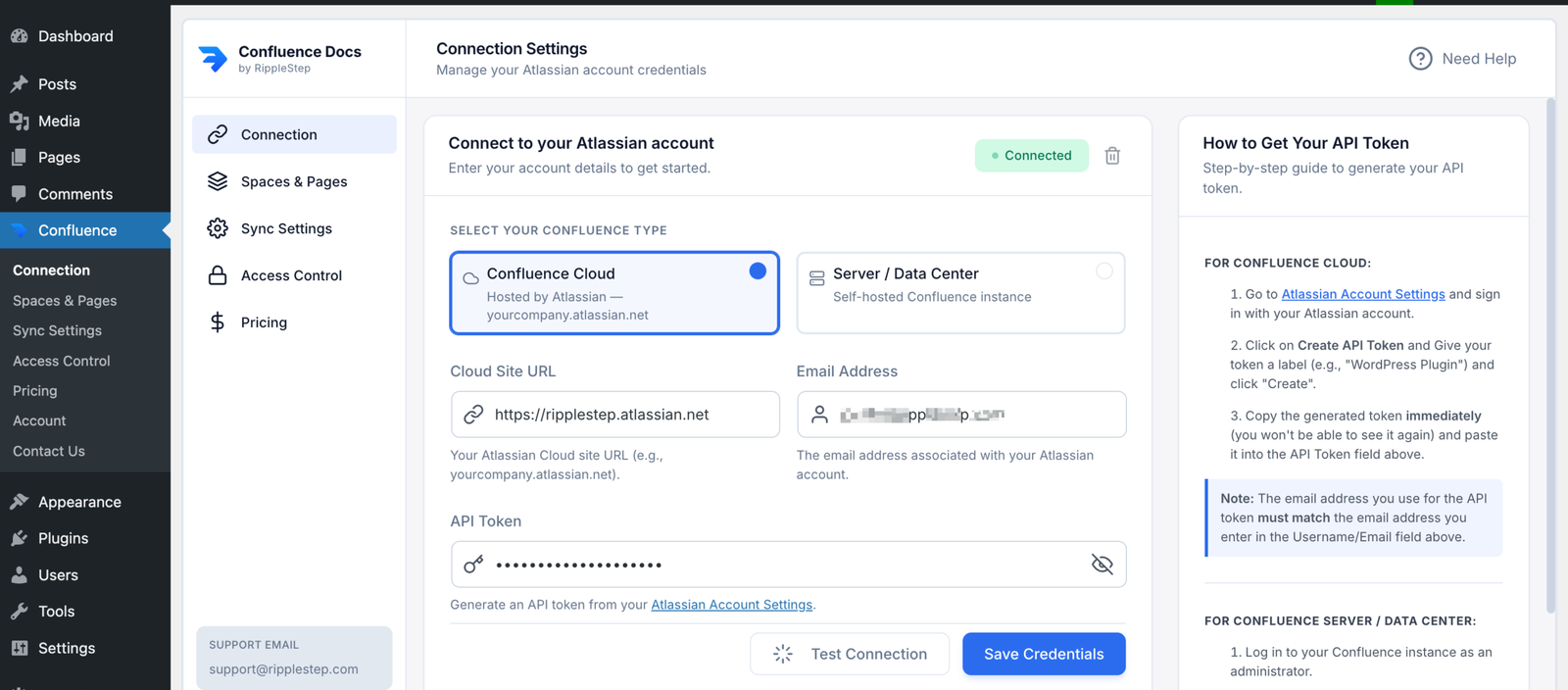
Install and activate Content Publisher for Confluence Pro. Enter your Confluence site URL, Atlassian email, and API token in Content Publisher → connection. Then go to Spaces and Pages, select your documentation space, and choose all the pages you want to publish across all tiers. Run the first sync.
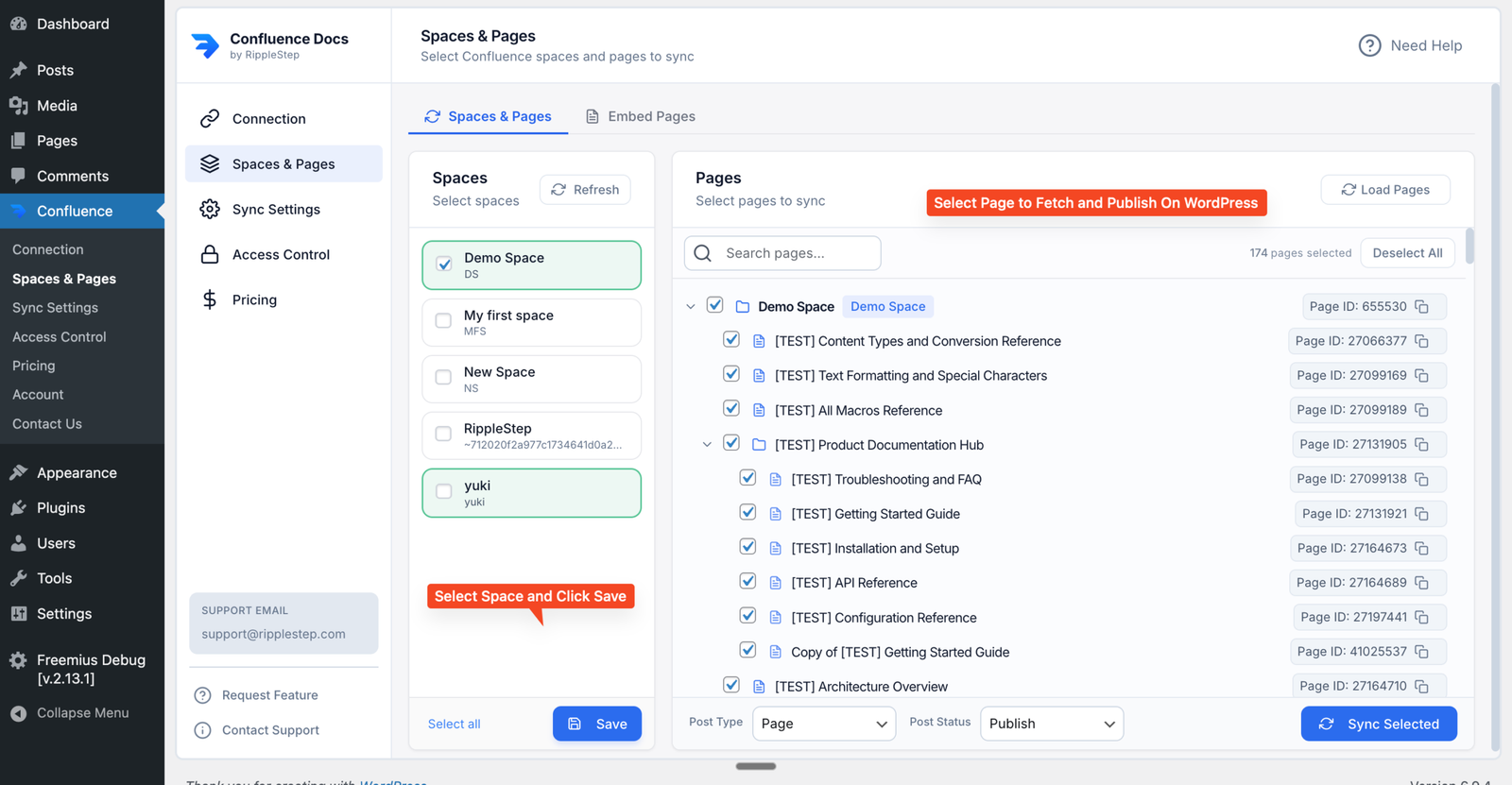
- All pages sync to WordPress as public by default initially — you'll set restrictions next
- Pro plan required for unlimited pages and per-page access control
Decide which WordPress roles map to your membership tiers. You can use existing roles or create custom ones:
- Subscriber — WordPress's lowest default role, good for free registered members
- Customer — added by WooCommerce; assigned automatically on purchase
- Custom roles — use a plugin like User Role Editor to create "Pro Member", "Enterprise", etc.
Create a WooCommerce product (e.g. "Pro Membership"). When purchased, WooCommerce assigns the Customer role. Restrict your Pro documentation pages to the Customer role — access is granted automatically on purchase.
Go to Content Publisher → Access Control. For each synced page, set the access level:
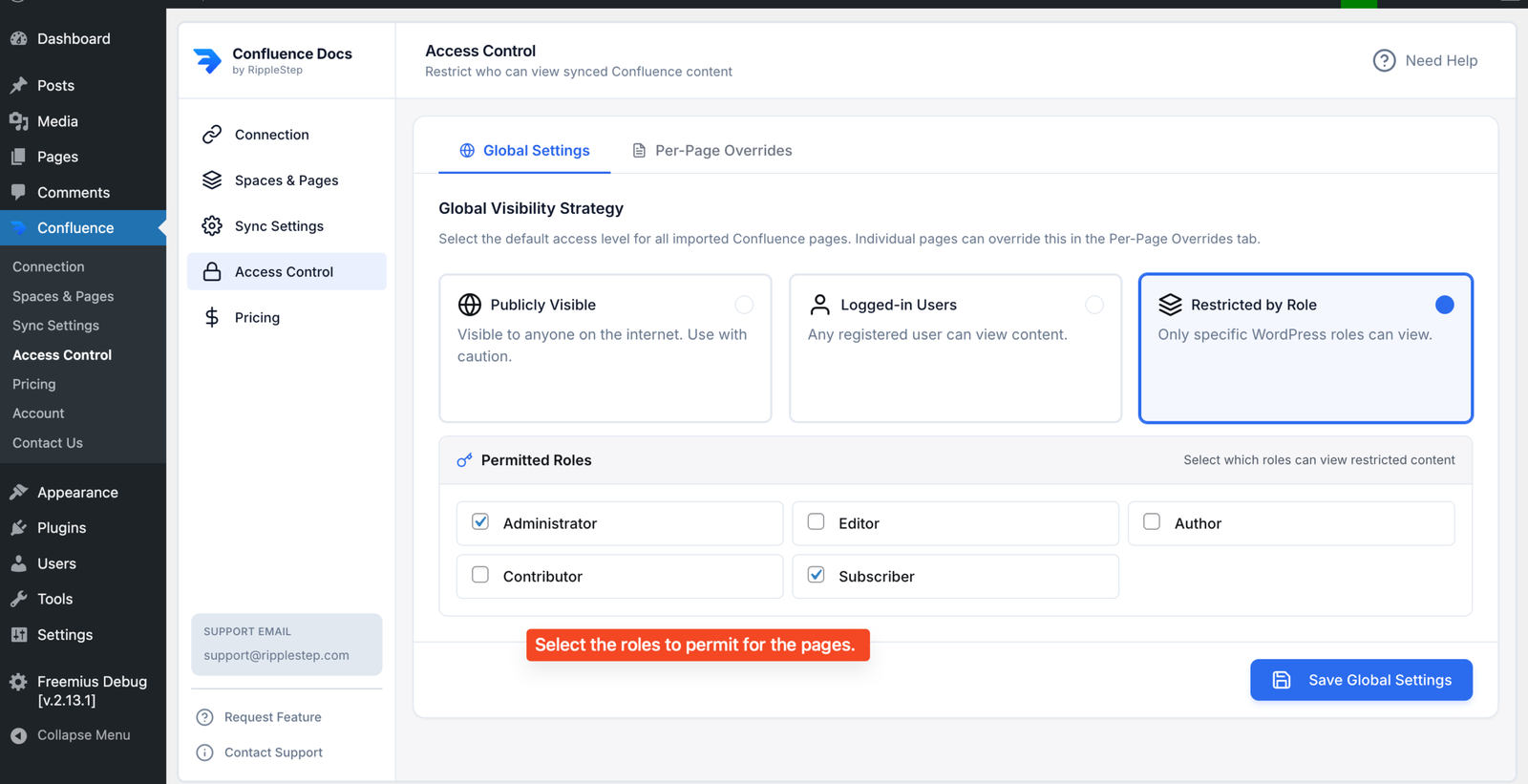
- Public preview pages → Public
- Base member content → Logged-in users
- Premium tier content → Specific role (Customer, Pro Member, etc.)
Save settings. Restrictions take effect immediately.
With your members portal live, the last piece is keeping content current. Go to Content Publisher → Sync Settings and set your automated sync schedule. When your team updates documentation in Confluence, it appears in the members portal on the next sync — no manual publishing required.
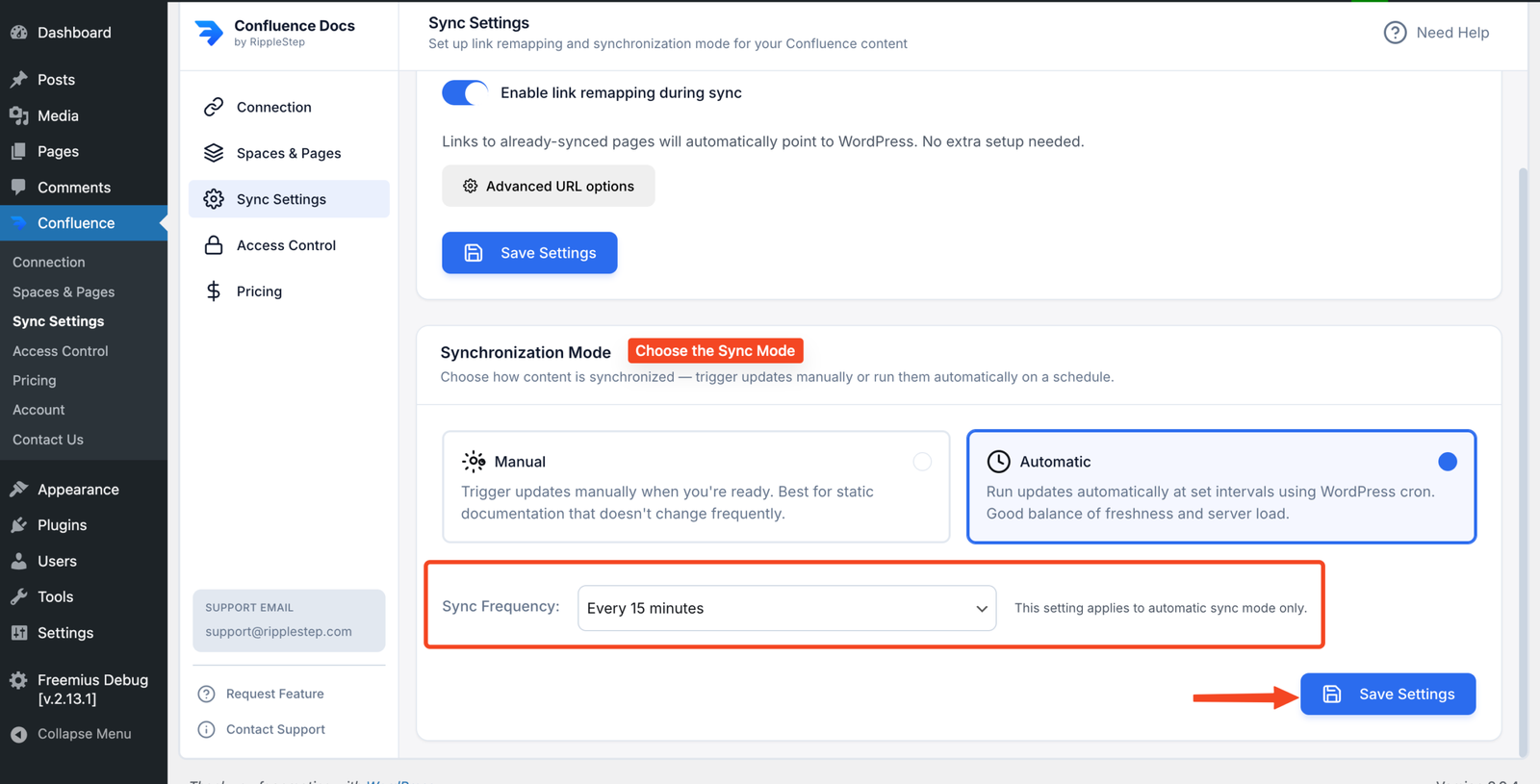
Access control settings are preserved across syncs. Adding a new page in Confluence and syncing it creates a new WordPress page — you'll then set its access level in the Access Control panel.
Building Multi-Tier Access
For more sophisticated membership sites with multiple access levels, you'll need custom WordPress roles — one per tier. Here's how common setups map:
| Membership Tier | WordPress Role | How Role Is Assigned | Docs Access |
|---|---|---|---|
| Public (no account) | None | N/A | Public pages only |
| Free member | Subscriber | On registration | Public + logged-in pages |
| Paid customer | Customer (WooCommerce) | On purchase | All of the above + Customer pages |
| Pro member | Pro Member (custom) | On Pro plan purchase | All of the above + Pro pages |
| Enterprise | Enterprise (custom) | Manual assignment by admin | All of the above + Enterprise pages |
Who This Is Built For
SaaS Customer Portals
Write onboarding guides, API docs, and advanced feature tutorials in Confluence. Gate them to paying customers. Update once — available to all customers instantly.
Online Course Platforms
Use Confluence for course materials. Publish to a WordPress learning portal. Restrict each module to enrolled students. No LMS plugin required for basic courses.
Professional Associations
Publish member resources, standards documents, and industry guides in Confluence. Gate them to paid association members on your WordPress site.
B2B Partner Portals
Create a partner documentation library in Confluence. Publish to WordPress and restrict to your certified partner network using a custom Partner role.
Agencies with Client Portals
Maintain client deliverables and project documentation in Confluence. Publish each client's docs to their WordPress area, restricted to their individual role.
Internal Knowledge Portals
Publish employee-facing policies and handbooks from Confluence to WordPress. Restrict to logged-in users — no Confluence licence needed for non-technical staff.
Build Your Members-Only Docs Portal
Content Publisher for Confluence Pro gives you per-page access control, unlimited page sync, and automated updates — everything you need to build a gated documentation site without a membership plugin.
Get Pro →