
Manual sync is fine when you're getting started. You connect Confluence, click Sync Now, and your pages appear on WordPress. But manual sync has a hidden cost: someone has to remember to do it. Every time a doc changes in Confluence — a product update, a fixed screenshot, a corrected step — that person needs to go into WordPress and run the sync again.
Most teams forget. Or they're too busy. The result is a WordPress documentation site that's a version or two behind reality, eroding user trust every time someone reads an outdated instruction.
Automated sync solves this completely. Set your schedule once. From then on, every change in Confluence propagates to WordPress automatically — no reminders, no manual steps, no stale docs.
The free plan of Content Publisher for Confluence supports manual sync only. Automated sync — on any schedule — requires upgrading to the Pro plan ($99/year).
Available Sync Schedules
Content Publisher for Confluence Pro gives you four sync intervals. Choose based on how frequently your docs change and how quickly those changes need to appear on your public site.
Best for fast-moving teams. Changes appear on WordPress within 15 minutes of being saved in Confluence.
Good for active documentation projects. A reliable middle ground between immediacy and server load.
Ideal for stable docs with occasional updates. Keeps content current without frequent sync jobs.
Perfect for documentation that changes infrequently. Syncs once per day, typically overnight.
Setting Up Automated Sync
Before enabling automated sync, you need the plugin connected and at least one Confluence space configured. If you haven't done that yet, follow the full sync setup guide first, then return here.
Automated sync requires the Pro plan. Upgrade to Pro here, then enter your licence key in Content Publisher → Settings → Licence. The automated sync options unlock immediately after activation.
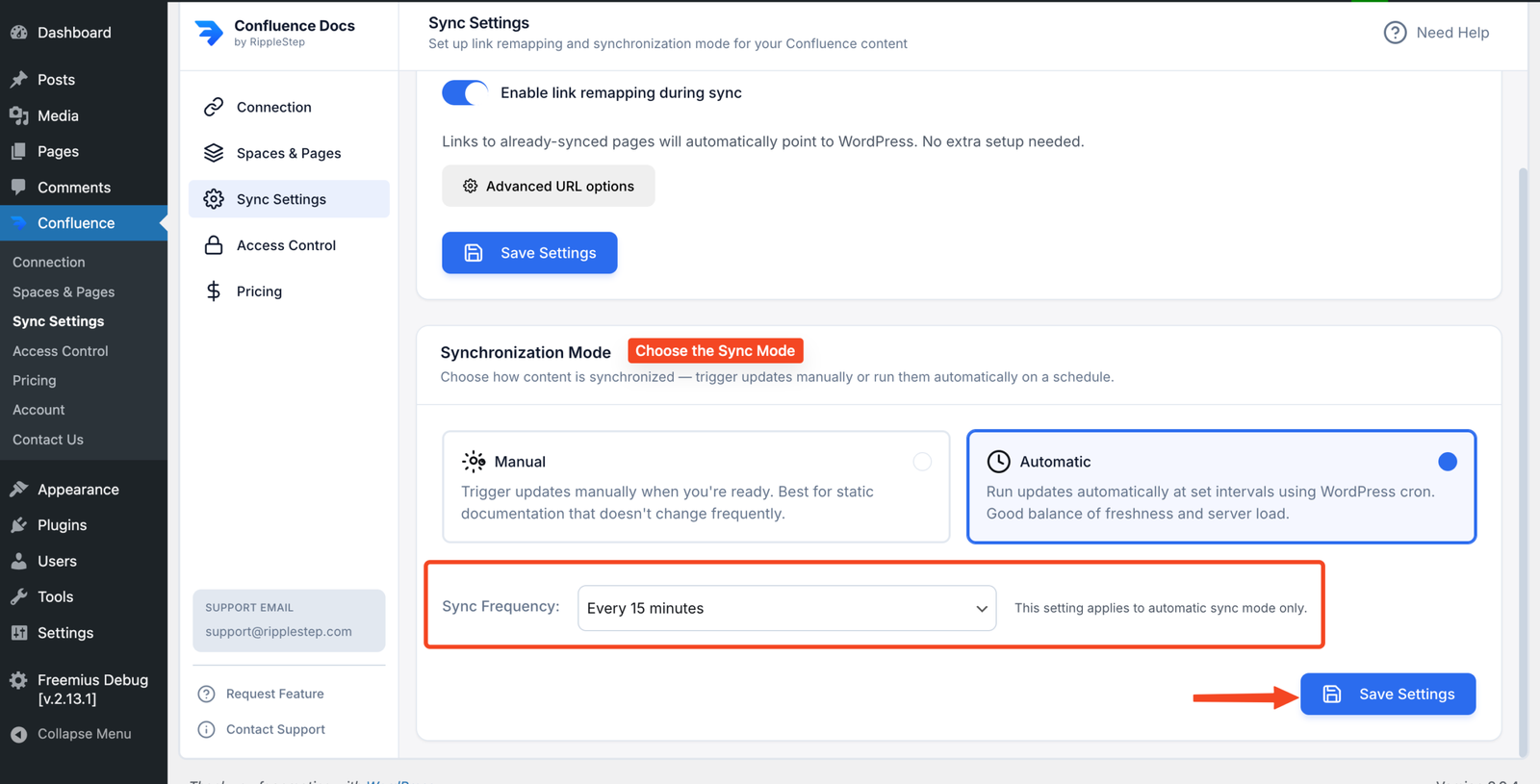
In your WordPress admin, go to Content Publisher → Sync Settings. This is where you configure the automated sync schedule. You'll see your connected Confluence spaces listed along with the current sync mode for each.
Select your preferred sync interval from the dropdown: Every 15 minutes, Hourly, Every 6 hours, or Daily. This is a single global schedule applied to all configured spaces.
What Happens on Each Sync Run
Understanding what the plugin does on each automated sync helps you predict its behaviour and troubleshoot any issues.
| Scenario in Confluence | What Happens in WordPress |
|---|---|
| Page content updated | WordPress page is updated with the new content |
| Page title changed | WordPress page title updated (slug preserved) |
| New page added (and selected for sync) | New WordPress page created on next sync |
| Page not modified since last sync | No action — plugin skips unchanged pages |
| Page deleted in Confluence | WordPress page is NOT deleted — manual removal required |
| WordPress page edited directly | Overwritten on next sync — always edit in Confluence |
Key rule: Confluence is the single source of truth
- Never edit synced pages directly in WordPress — changes will be overwritten
- Always make edits in Confluence, then let the sync carry them to WordPress
- If you need to customise a page's WordPress layout, use a non-synced wrapper page or template
Who Benefits Most from Automated Sync
Product Teams Shipping Weekly
Every release changes the docs. Automated sync keeps your public documentation current without adding a publishing step to the release process.
Small Documentation Teams
When one or two people manage a large doc library, automated sync removes the overhead of remembering to manually publish every update.
Customer Support Teams
When a bug is fixed and the docs are updated in Confluence, automated sync means the correct information is on your public help center within the hour.
Multiple Space Owners
When different teams own different Confluence spaces, no single person can be responsible for remembering to sync everything. Automation removes the dependency entirely.
Stop Syncing Manually. Automate It.
Content Publisher for Confluence Pro unlocks automated sync on any schedule. One upgrade, zero manual steps from that point on.
Upgrade to Pro →