
Category trees and tag dictionaries drift when one team edits Airtable and another edits WordPress. If Airtable holds the controlled vocabulary for topics, regions, industries, or event types, you want those terms in WordPress without retyping slugs.
This guide shows how to import rows from a terms table in Airtable into WordPress taxonomies with Integration for Airtable: categories and tags on Free; custom taxonomies on Pro; parent terms via linked records; scoped with views or filterByFormula; safe re-sync via the ID map. Airtable does not have taxonomies of its own — each table row becomes a WordPress term.
Pair this with posts and pages import so posts can resolve taxonomy assignments from linked records.
When you need this
- Editorial taxonomy maintained in Airtable alongside an editorial calendar.
- Directories (industry, city) stored as Airtable select or linked data that must become WordPress terms.
- Custom post type archives (Pro) that depend on a custom taxonomy kept in a base.
What you need
- An Airtable table of terms (name, optional slug, description, parent)
- Integration for Airtable authenticated in Airtable Config
- For custom taxonomies: Pro, and the taxonomy already registered in WordPress (theme or plugin)
Categories and tags, step by step

Go to Airtable Sync → Airtable Config. Connect with OAuth, which is recommended for most sites, or use a Personal Access Token (PAT).
- Click Connect with Airtable
- Sign in to the account that can access your terms base
- Choose the bases to share and grant access
- Confirm Connected via OAuth in WordPress

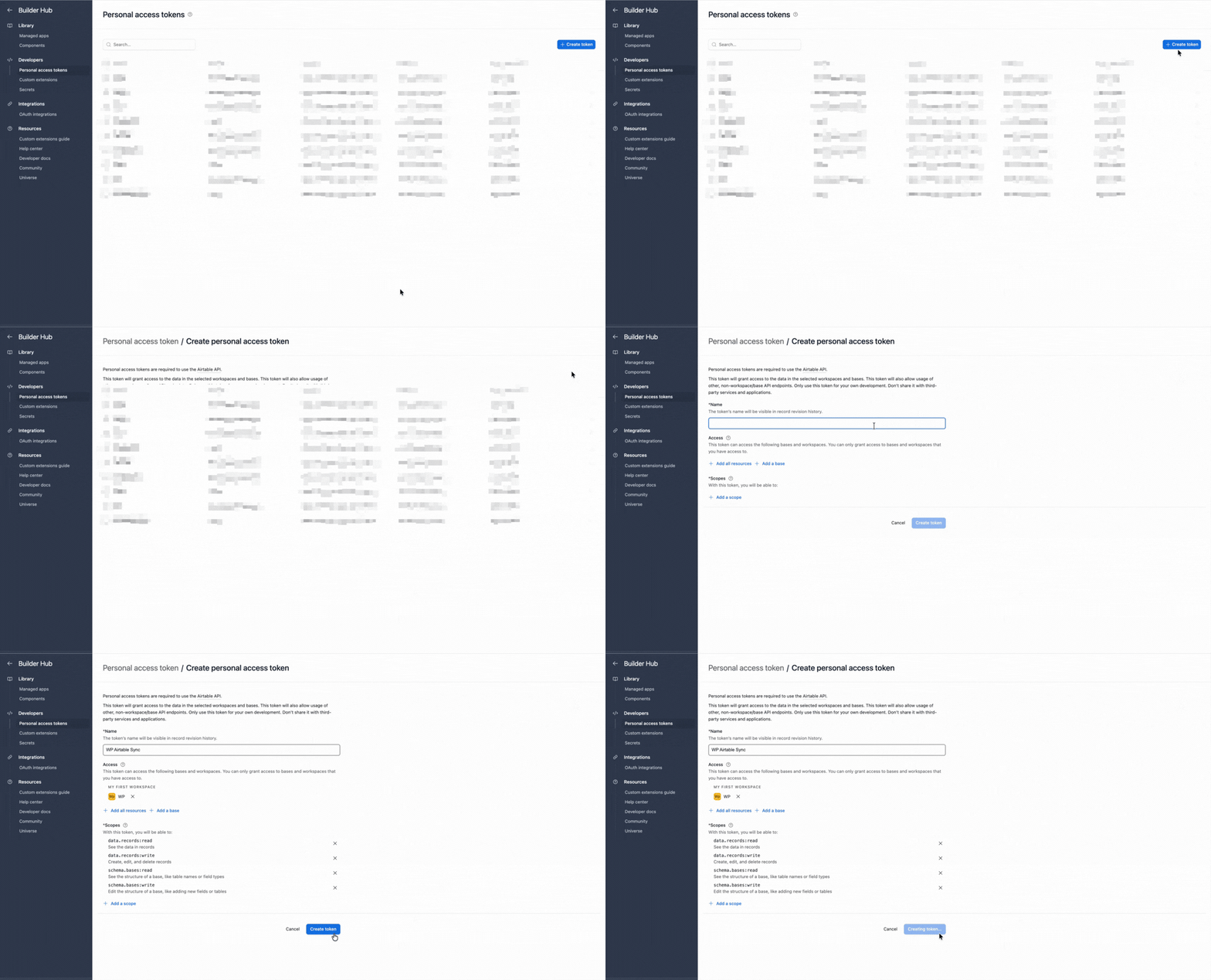
Use a PAT if you prefer to create and manage the token yourself.
- Create a personal access token
- Add
schema.bases:readanddata.records:read. Add write permissions only if the same connection also uses a workflow that writes to Airtable. - Under Access, include the terms base

- Paste the PAT into Airtable Config and save

Airtable Sync → Import → add a connection → Taxonomies (categories and tags).
- Airtable base and table of terms.
- Optional view or
filterByFormula. - WordPress destination: Categories or Tags on Free.
Custom taxonomies require Pro. Select the registered taxonomy name when it is available.
- Name: Single line text. Required.
- Slug: Text. Optional. Enables match-by-slug linking when offered.
- Description: Long text. Optional.
- Parent: Linked record to the parent term. Linked-record resolution is supported for parent terms.
Keep hierarchy clean in Airtable (one parent link) before importing deep trees.
- ID map ties each Airtable term record to a WordPress term for updates.
- Optional match by slug helps when terms already exist in WordPress.
- Free schedules: manual, daily, weekly. Pro: from every 15 minutes.
Save, then Import now.
- Open Airtable Sync → Sync Logs for the import run and per-term detail.
- Posts → Categories or Tags (or the custom post type menu for custom taxonomies on Pro).
- Confirm parent and child relationships.
- Change a description in Airtable, re-import, and confirm the same term updates.
Send the error text and a screenshot to support@ripplestep.com. We’ll help you identify what failed.
Custom taxonomies (Pro)
On Pro you can target custom taxonomies registered for your custom post types (events, listings, and similar).
- Register the taxonomy in WordPress first. It must exist before mapping.
- Create or select a Taxonomies import connection aimed at that taxonomy.
- Map name, slug, description, and parent as above.
- When importing posts or custom post types, map Airtable linked-record fields to taxonomy assignments so posts receive the terms created here.
Pro also unlocks faster schedules and delete-missing. Delete-missing can remove previously imported terms only when no Airtable view or filter scopes the connection. Use it only when the full table is authoritative.
A simple Airtable terms table
Name(text)Slug(text)Description(long text)Parent(linked record to Terms)Type(Category, Tag, Industry, and so on). Filter with views per import connection.Sync?(checkbox). Use a view filtered to checked rows.
Point each WordPress taxonomy import at the matching view.
Before you import
Watch these. They are the usual reasons Sync Logs shows a slug error, or posts still have empty categories after a “successful” import.
Categories can nest. Tags cannot. Leave Parent unmapped unless the destination is Categories or a hierarchical custom taxonomy on Pro.
Two rows sharing news will fail. Open Sync Logs, then change the Airtable slug — or match the WordPress term that already owns it.
This connection only creates the categories and tags. Map those fields on the Posts/Pages import, and run this table first so there is something to assign.
Changing the Airtable name updates the same WordPress term. Changing the slug can change /category/... URLs.
Categories and tags only. Custom taxonomies, extra connections, and a bigger list need Pro.
Free vs Pro
| Capability | Free | Pro |
|---|---|---|
| Destinations | Posts, pages, users, categories, tags | Adds CPTs, custom taxonomies, ACF, media |
| Import connections | One active per entity type | Unlimited |
| Imported records | Up to 300 / month | Unlimited |
| Schedules | Manual, daily, weekly | From every 15 minutes |
| Scope | Views and filterByFormula | Same |
| Duplicate safety | ID map, optional match | Adds delete-missing |
Full pricing is on Import from Airtable. Form limits are separate. See Forms to Airtable. Pro is $99/year.
Troubleshooting
Choose the symptom you see to view the likely cause and next step.
Parent terms are missing
Import or include parent rows in the same view. Check the parent linked-record mapping. Flat tag imports should not use parents.
Slug already exists
Sync History will flag collisions. Change the Airtable slug, or match the existing WordPress term via slug matching instead of creating a second term.
Custom taxonomy is not listed
You need Pro, and the taxonomy must be registered in WordPress before the Import screen can target it.
Posts do not show the new categories
Term import only creates terms. Assignments happen when your Posts/Pages or custom post type import maps linked records or taxonomy fields. Configure both.
Terms were deleted unexpectedly
Use Pro delete-missing only on an unscoped connection with no Airtable view or filter, and only when removing a row should remove the WordPress term. The safer default is update and create without deleting.
FAQ: Airtable to WordPress taxonomies
Can I create WordPress categories from an Airtable table?
Yes. Use an Import connection for Categories, and likewise Tags. Map name, slug, description, and parent from the table columns, then run or schedule the import.
Are custom taxonomies included on Free?
No. Custom taxonomies are a Pro destination. Free covers categories and tags.
How do parent terms work?
Map a parent linked record or supported parent field. The importer resolves linked records for parent terms when configured correctly. Import parents before deep children if you hit ordering issues.
Will re-sync duplicate terms?
The Airtable to WordPress ID map updates existing terms. Optional slug matching helps connect terms that already existed in WordPress.
Can I import only a subset of terms?
Yes. Use Airtable views and filterByFormula.
Where do I verify taxonomy imports?
Airtable Sync → Sync Logs, then the WordPress taxonomy admin screen.
Do taxonomy imports assign terms to posts automatically?
Importing the term dictionary creates or updates terms. Assigning those terms to posts, pages, or custom post types is part of Posts/Pages or CPT import mapping, often via linked records. Configure both connections for a full Airtable-as-CMS loop.
Next steps
- Install Integration for Airtable free.
- Create a Categories or Tags connection under Airtable Sync → Import.
- Run Import now and confirm the hierarchy in WordPress and Sync History.
- For custom taxonomies and faster schedules, see Import from Airtable.
Also useful
- WordPress ↔ Airtable: overview of sync, forms, and import paths
- Import posts and pages: assign imported terms to content
Email support@ripplestep.com with the error text and a screenshot if you have one.
Keep the vocabulary in Airtable
Install the free plugin, import one categories or tags table, and confirm parent terms in WordPress before you assign them on posts.
Install Integration for Airtable free