
If Airtable is your editorial calendar, product copy sheet, or landing-page inventory while WordPress is what the public sees, you should not be copying titles and body HTML every time a row changes.
This guide covers Airtable → WordPress posts and pages with Integration for Airtable: choose a table (optional view or visual filter), map columns to post fields, Dry run before you import, and rely on the Airtable ↔ WordPress ID map so re-runs update the same content instead of spawning duplicates. Unchanged mapped values are skipped.
Who this is for
- Publishers keeping drafts and status in Airtable, then pushing to WordPress.
- Teams managing landing pages or resource libraries in a base.
- Anyone comparing import-only tools who also wants forms → Airtable in the same plugin later.
This is not “embed an Airtable view on a page.” It creates real WordPress posts and pages.
What you need
- WordPress 5.9+ / PHP 8.0+
- An Airtable base with a table of content rows (title and body at minimum)
- Integration for Airtable installed
- Editor-level access in WordPress to create posts and pages
Optional Pro destinations such as custom post types, ACF, and featured images are noted below. They are not available on Free.
Import posts and pages, step by step

Go to Airtable Sync → Airtable Config. Connect with OAuth, which is recommended for most sites, or use a Personal Access Token (PAT).
- Click Connect with Airtable
- Sign in to the account that can access your content base
- Choose the bases to share and grant access
- Confirm Connected via OAuth in WordPress

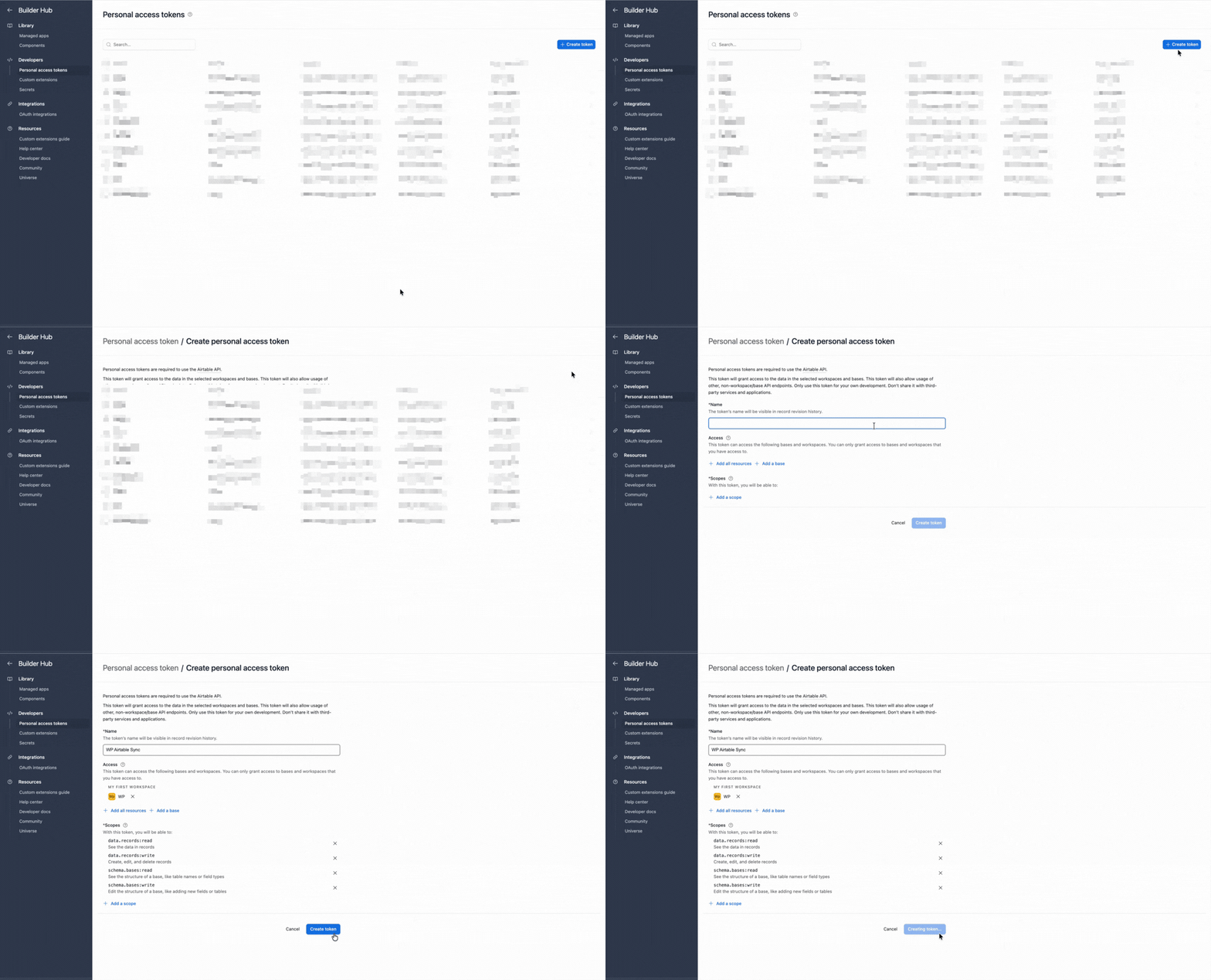
Use a PAT if you prefer to create and manage the token yourself.
- Create a personal access token
- Add
schema.bases:readanddata.records:read. Add write permissions only if the same connection also uses a workflow that writes to Airtable. - Under Access, include the content base

- Paste the PAT into Airtable Config and save

An import connection links one Airtable table to WordPress posts or pages. Mapped rows become real WordPress objects. Free allows one active Posts/Pages connection; Pro supports more.
- Go to Airtable Sync → Import
- Click Add Import Connection
- Choose Posts (posts, pages, and custom post types)
- Set Destination to Posts or Pages. Custom post types are Pro.
- Select the Airtable base and table
- Optionally select a view so only rows in that view import
- Optionally open Filter records and add visual rules. An advanced formula is optional if the rules are not enough
- Optionally add a connection name so you can find it later
If bases or tables do not load, reconnect under Airtable Config and confirm the token or OAuth grant includes this base.

Map at least the fields you need to publish. Unmapped Airtable columns are ignored, which is useful for internal fields such as owner, checklist, or “ready?”.
- In Field Mappings, click Add Field for each pair you need
- Choose the Airtable column, then the matching WordPress post field
- Skip internal ops columns you do not want in WordPress
- Use Custom Fields only when you need meta keys or ACF. Those destinations are Pro
- Save after the required mappings look correct

Title is required for sensible permalinks. Status values should be draft, publish, pending, private, or future. Rich text, and long text that looks like Markdown, is converted to HTML. Plain text stays plain text.
- ID map (default safety): after the first successful import, later runs update the same WordPress object for that Airtable record instead of creating duplicates. If the mapped values have not changed, that row is skipped.
- Optional match by slug: useful when posts already exist in WordPress and you want the first import to attach to them by slug.
- Set default status behavior if a row omits status.
- Free schedules: manual, daily, weekly. Pro: as frequent as every 15 minutes, plus other intervals through twice daily.
Save the connection.
- Click Dry run to preview the import without writing posts or pages
- Open Airtable Sync → Sync Logs and review the dry-run result
- Check for missing titles, unexpected status values, and the row count you expect
- When the dry run looks right, return to the connection and click Import now
Dry-run and import results both appear in Sync Logs. Large tables process through background queues, so every row may not finish in one browser request. Recheck Sync Logs after the queue completes.
- Stay in Airtable Sync → Sync Logs and open the Import now run
- Check the import run status (success, warning, or error)
- Drill into record-level detail when something failed (empty title, invalid status, attachment errors on Pro)
- In WordPress, open a sample post or page and confirm title, content, slug, and status
- Change one Airtable cell, run again, and confirm the same post updates
Send the error text and a screenshot to support@ripplestep.com. We’ll help you identify what failed.
Keep Airtable as the source of truth
- Editors change copy or status in Airtable.
- Schedule daily (Free) or tighter Pro intervals.
- WordPress reflects updates via the ID map.
- Optional Pro delete-missing can trash previously imported posts only when no Airtable view or filter scopes the connection. Enable it only when the full table is authoritative and removal is intentional.
Forms can still feed other tables (leads, applications) via Airtable Sync → Forms while content imports run separately. See Forms to Airtable.
Free vs Pro
| Capability | Free | Pro |
|---|---|---|
| Destinations | Posts, pages, users, categories, tags | Adds CPTs, custom taxonomies, ACF, media |
| Import connections | One active per entity type | Unlimited |
| Imported records | Up to 300 / month | Unlimited |
| Schedules | Manual, daily, weekly | From every 15 minutes |
| Scope | Views, visual filters, optional formula | Same |
| Duplicate safety | ID map, optional match | Adds delete-missing |
Full pricing is on Import from Airtable. Form limits are separate. See Forms to Airtable. Pro is $99/year.
Troubleshooting
Choose the symptom you see to view the likely cause and next step.
Import finishes with warnings
Open Airtable Sync → Sync Logs and read the per-record message. Invalid status strings and empty titles are common.
Duplicates appeared
This usually follows a broken ID map relationship or manually recreated posts. Use match by slug once to reconnect, then rely on the ID map.
Schedule did not run
Confirm the connection schedule is saved, WP-Cron runs on the host, and you have not exhausted the Free monthly import limit of 300 records.
Only some rows import
Check the Airtable view and Filter records rules. Open the same view in Airtable and compare its rows with the import.
Custom post types, ACF, or images are unavailable
Those destinations are Pro. See Import from Airtable.
FAQ: Airtable to WordPress posts and pages
Will re-importing create duplicate posts?
No. When the Airtable to WordPress ID map is in place, later syncs update the same post or page. Optional slug matching helps link pre-existing WordPress content on first connect.
Can I import only some Airtable rows?
Yes. Use an Airtable view, the visual Filter records rules, or an optional advanced formula.
Does Free support custom post types?
No. Free imports posts and pages (core fields). Custom post types, ACF or meta, and featured images are Pro.
How often can imports run?
Free: manual, daily, weekly. Pro: intervals from every 15 minutes up to twice daily, plus the Free frequencies.
Where do I see per-record errors?
Airtable Sync → Sync Logs. Import runs include record-level success, warning, or error detail.
Is this the same as embedding Airtable?
No. Embedding shows Airtable in an iframe or block. This importer creates native WordPress posts and pages you can theme, cache, and SEO as usual.
Can one plugin both import posts and send form leads to Airtable?
Yes. That two-way design is the point of Integration for Airtable versus import-only plugins.
Next steps
- Install Integration for Airtable free.
- Create a Posts/Pages connection under Airtable Sync → Import.
- Run a dry run, review the result in Sync Logs, then import.
- For custom post types, ACF, or media, see Import from Airtable.
Also useful
- WordPress ↔ Airtable: overview of sync, forms, and import paths
- Sync Airtable taxonomies: create terms before assigning them to posts
Send the error text and a screenshot to support@ripplestep.com. We’ll help you identify what failed.
Publish from the base, not the clipboard
Install the free plugin, map one table to posts or pages, and confirm the ID map updates the same object on a second run.
Install Integration for Airtable free