
Fluent Forms can remain the intake layer while Airtable holds the operational records. Integration for Airtable provides a mapped connection in WordPress and records each sync attempt for review.
When this guide is useful
- You already have a published Fluent Form and do not want to rebuild it.
- Your team uses Airtable views, Interfaces, or Automations after intake.
- You want one plugin that also supports other form builders and Airtable imports.
What you need
- Fluent Forms with a saved, published form
- An Airtable account with a target base and table
- Integration for Airtable installed and activated
Fluent Forms to Airtable, step by step
- Go to Plugins → Add New and search for Integration for Airtable
- Install and activate it, then open Airtable Sync


Open Airtable Sync → Airtable Config and choose one path.
- Click Connect with Airtable and sign in
- Grant access to the target base
- Confirm Connected via OAuth
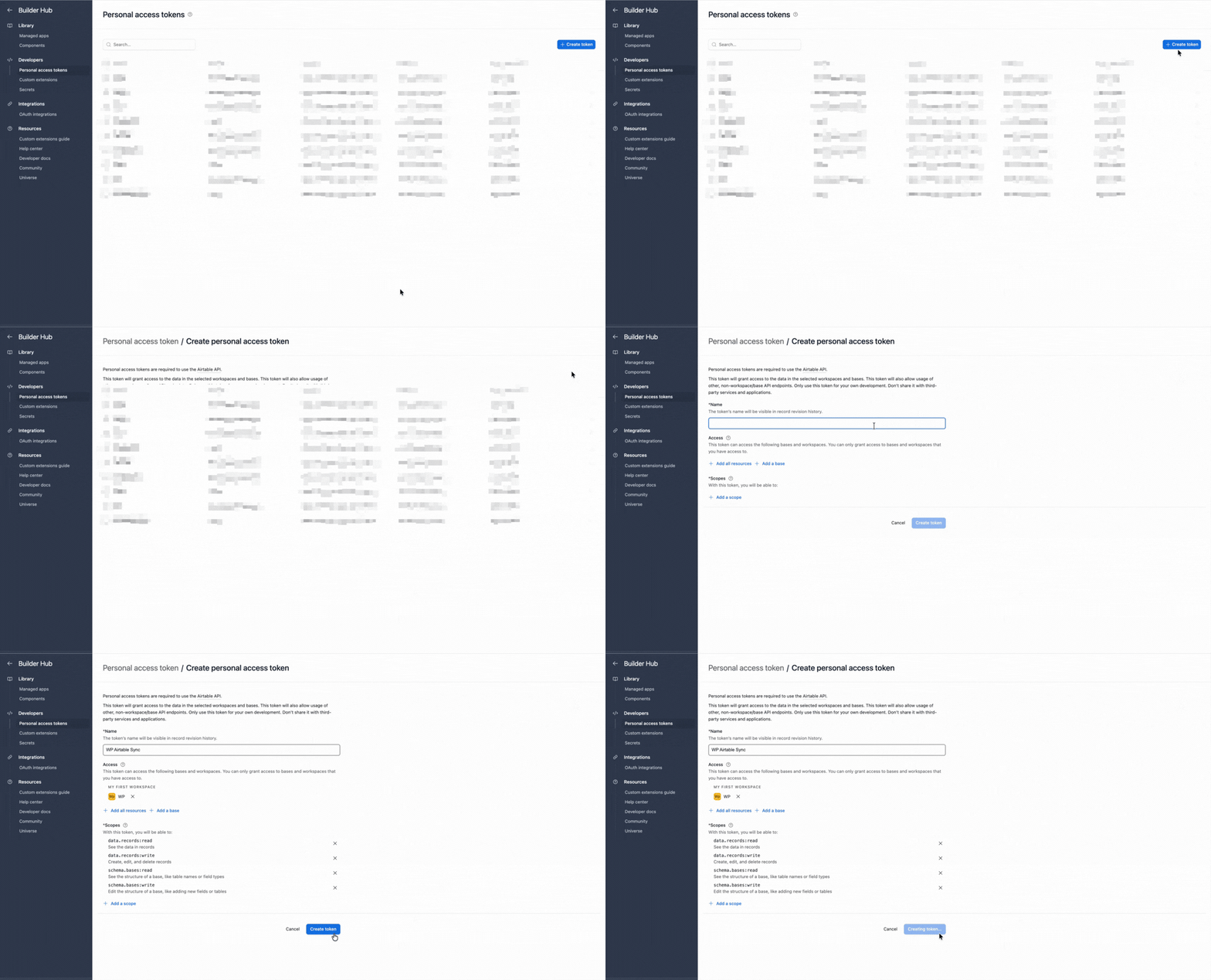
- Create a token with
schema.bases:read,schema.bases:write,data.records:read, anddata.records:write - Give it access to the target base

- Paste it into Airtable Config and save

- Go to Airtable Sync → Forms and add a connection
- Choose Fluent Forms and select the saved form
- Select a base and table, or create a table from the form fields
Map each required input to a compatible Airtable column, then save the connection.
- Use Long text for textareas and Number for numeric values.
- Match select labels to Airtable choices, or use text while validating.
- Test checkbox and multi-select formatting before launch.
- Map exposed name and address subfields separately when useful.
- Save the Fluent Form before refreshing the mapper after field changes.
- Submit known values through the published form
- Open Airtable Sync → Sync Logs
- Confirm the new record and spot-check mapped values in Airtable
Test every important conditional path. A field with no submitted value may be empty.
Send the error text and a screenshot to support@ripplestep.com.
Common Fluent Forms workflows
01Lead intake
Map identity, source, consent, and enquiry fields to a Leads table.
02Event registration
Store one completed registration per record and organize Airtable views by event.
03Conditional intake
Test each form branch and confirm which mapped values are present.
04Campaign attribution
Map deliberate hidden fields such as source or plan when they are part of the saved form.
Fluent Forms gotchas
- Save the form after adding or renaming fields, then refresh the mapper.
- Multi-step and conversational forms should be tested through final submission.
- Test calculated, hidden, and conditional values rather than assuming their output format.
- If Fluent Forms already provides an Airtable option for your plan, compare it with this multi-builder and import workflow before choosing.
Free vs Pro
| Capability | Free | Pro |
|---|---|---|
| Form connections | 1 active | Unlimited |
| Successful form syncs | Up to 300 per month | Unlimited |
| Field mapping | Core mapping | Core mapping |
| Delivery | Immediate or WP-Cron | Immediate or WP-Cron |
| Sync History | Yes | Yes |
Start on Free to validate one connection. See the Forms to Airtable product page for current plan details. Pro is $99/year.
Troubleshooting
No Sync History row appears
Confirm the form is published, the connection is active, and the test reached the form’s completed submission state.
Airtable authentication fails
Reconnect OAuth or verify that the PAT has the required scopes and target-base access.
Multi-select values look wrong
Inspect a test record and use an Airtable column type that accepts the submitted format.
A field is missing from the mapper
Save the Fluent Form, then reload its connection so the mapper can read the current definition.
FAQ: Fluent Forms to Airtable
How do I connect without Zapier?
Install the plugin, connect Airtable, add a Fluent Forms connection, map fields, and test a completed submission.
Where are the sync logs?
Open Airtable Sync → Sync Logs.
Can I sync more than one form on Free?
Free allows one active connection. Check the product page for current plan limits.
Do conditional fields sync?
Map the fields and test each conditional path. Fields without submitted values may be empty.
Can the plugin also import from Airtable?
Yes. It includes separate Airtable to WordPress import workflows.
Next steps
- Install Integration for Airtable free.
- Map one saved Fluent Form and submit known test values.
- Confirm the result in Sync History and Airtable.
Also useful
Send Fluent Forms entries to Airtable
Map one published form and verify the first Airtable record in Sync History.
Install Integration for Airtable free