
Formidable Forms is often used for structured applications, calculators, directories, and multi-page intake. Integration for Airtable can send mapped values from a completed form submission to Airtable, where the team can manage the resulting record.
Why use this path
- Keep Formidable Forms as the intake layer for structured submissions.
- Send only the mapped values your Airtable workflow needs.
- Test complex Formidable fields before relying on them in production.
What you need
- Formidable Forms with a saved, published form
- An Airtable account with a target base and table
- Integration for Airtable installed and activated
Formidable Forms to Airtable, step by step
- Go to Plugins → Add New and search for Integration for Airtable
- Install and activate it, then open Airtable Sync


Open Airtable Sync → Airtable Config and choose one path.
- Click Connect with Airtable and sign in
- Grant access to the target base
- Confirm Connected via OAuth
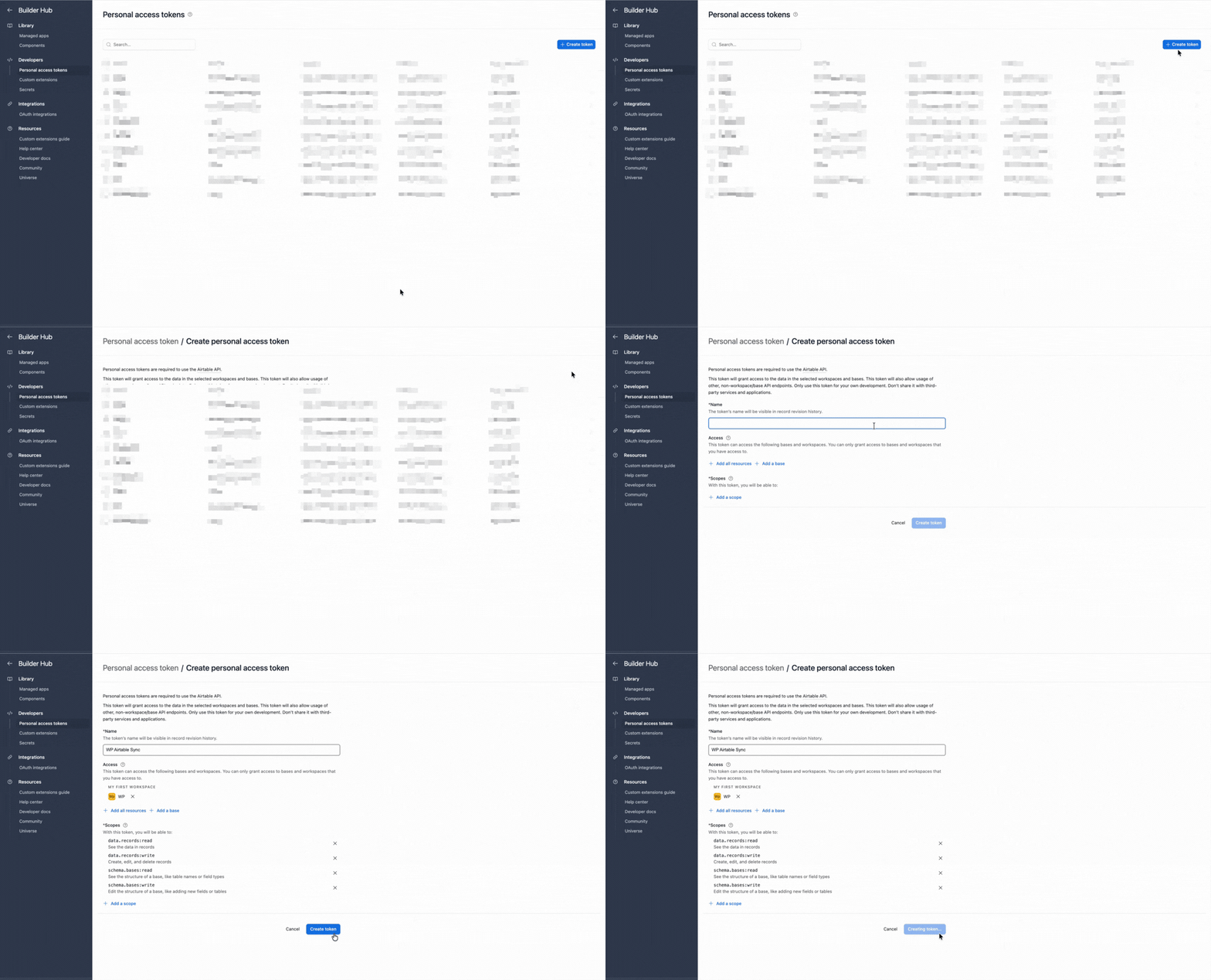
- Create a token with
schema.bases:read,schema.bases:write,data.records:read, anddata.records:write - Give it access to the target base

- Paste it into Airtable Config and save

- Go to Airtable Sync → Forms and add a connection
- Choose Formidable Forms and select the saved form
- Select a base and table, or create a table from the form fields
Map the fields exposed by the saved form to compatible Airtable columns, then save the connection.
- Use text, Long text, Email, Number, and Date columns where their input formats match.
- Align dropdown and radio labels with Airtable choices, or use text while testing.
- Test calculated and currency values with known inputs.
- Confirm how repeater, embedded, dynamic, and lookup fields appear before relying on them.
- Map file fields only after confirming that your plan and workflow support the required attachment behavior.
- Submit known values through the published form
- Open Airtable Sync → Sync Logs
- Confirm the record and mapped values in Airtable
Test a completed front-end submission. Do not assume that drafts or later admin edits create another Airtable record.
Send the error text and a screenshot to support@ripplestep.com.
Common Formidable Forms workflows
01Applications
Send each completed application to a table with Airtable-only review fields.
02Calculated quotes
Map submitted inputs and tested calculated outputs to compatible columns.
03Directory intake
Collect structured listing data while Airtable manages review and status.
04Multi-page intake
Create the Airtable record after the visitor completes the final submission.
A good data-model fit
- Start with one Airtable table per Formidable form while validating the workflow.
- Keep choice labels consistent when mapping to Airtable select columns.
- Keep assignee, stage, and review notes as Airtable-only fields.
- Use the separate Import workflow if Airtable records later need to become WordPress content.
Formidable Forms gotchas
- Formidable Views display entries in WordPress but do not confirm Airtable sync.
- Save the form before refreshing the mapper after field changes.
- Test repeater and embedded form output because complex values may not match a flat Airtable field.
- Do not assume that every admin-side entry edit triggers another outbound sync.
Free vs Pro
| Capability | Free | Pro |
|---|---|---|
| Form connections | 1 active | Unlimited |
| Successful form syncs | Up to 300 per month | Unlimited |
| Field mapping | Core mapping | Core mapping |
| Delivery | Immediate or WP-Cron | Immediate or WP-Cron |
| Sync History | Yes | Yes |
Start on Free to validate one connection. See the Forms to Airtable product page for current plan details. Pro is $99/year.
Troubleshooting
A field is missing from the mapper
Save the Formidable form, then reload its connection. Confirm that the field exists in the saved definition.
Numbers or currency look wrong
Test with a known value and use a compatible Airtable Number column. Keep formatted display text separate if needed.
Repeater data is incomplete
Inspect what the mapper exposes. Keep critical values in parent fields or redesign the workflow if the repeated structure is not represented as needed.
A select value is rejected
Align Airtable choice labels with the submitted value, or map to text while validating.
A draft has no Airtable record
Test a complete front-end submission. The documented workflow is based on completed submissions.
FAQ: Formidable Forms to Airtable
Can Formidable Forms send entries automatically?
Yes. A mapped connection can create an Airtable record after a completed submission.
Do I need Zapier?
No. The connection is configured in WordPress.
Where do I debug a missing record?
Check Sync Logs, then confirm that the entry completed and the correct connection is active.
Are calculated fields supported?
Map a calculated field only when its submitted value appears in the mapper, then test it with a known value.
Can the plugin import from Airtable?
Yes. It also includes separate Airtable to WordPress import workflows.
Next steps
- Install Integration for Airtable free.
- Map one saved Formidable form and submit a complete test entry.
- Confirm the result in Sync History and Airtable.
Also useful
Send completed Formidable entries to Airtable
Map one form and verify the first Airtable record in Sync History.
Install Integration for Airtable free