
Elementor Pro includes a Form widget for collecting leads and requests. When your team works in Airtable, Integration for Airtable can map completed submissions to Airtable records without an intermediary workflow.
Why use this path
- Keep the Elementor Pro Form widget as the public intake experience.
- Send mapped submission values to the Airtable base where the team works.
- Review each test in Sync History before relying on the connection.
This workflow supports the Form widget included with Elementor Pro. It does not apply to unrelated Elementor widgets or Elementor Free alone.
What you need
- Elementor Pro with a saved Form widget on a published page
- An Airtable account with a target base and table
- Integration for Airtable installed and activated
Elementor Forms to Airtable, step by step
- Go to Plugins → Add New and search for Integration for Airtable
- Install and activate it, then confirm that Airtable Sync appears


Open Airtable Sync → Airtable Config and choose one authentication path.
- Click Connect with Airtable and sign in
- Choose the bases the plugin may access and grant access
- Return to WordPress and confirm Connected via OAuth
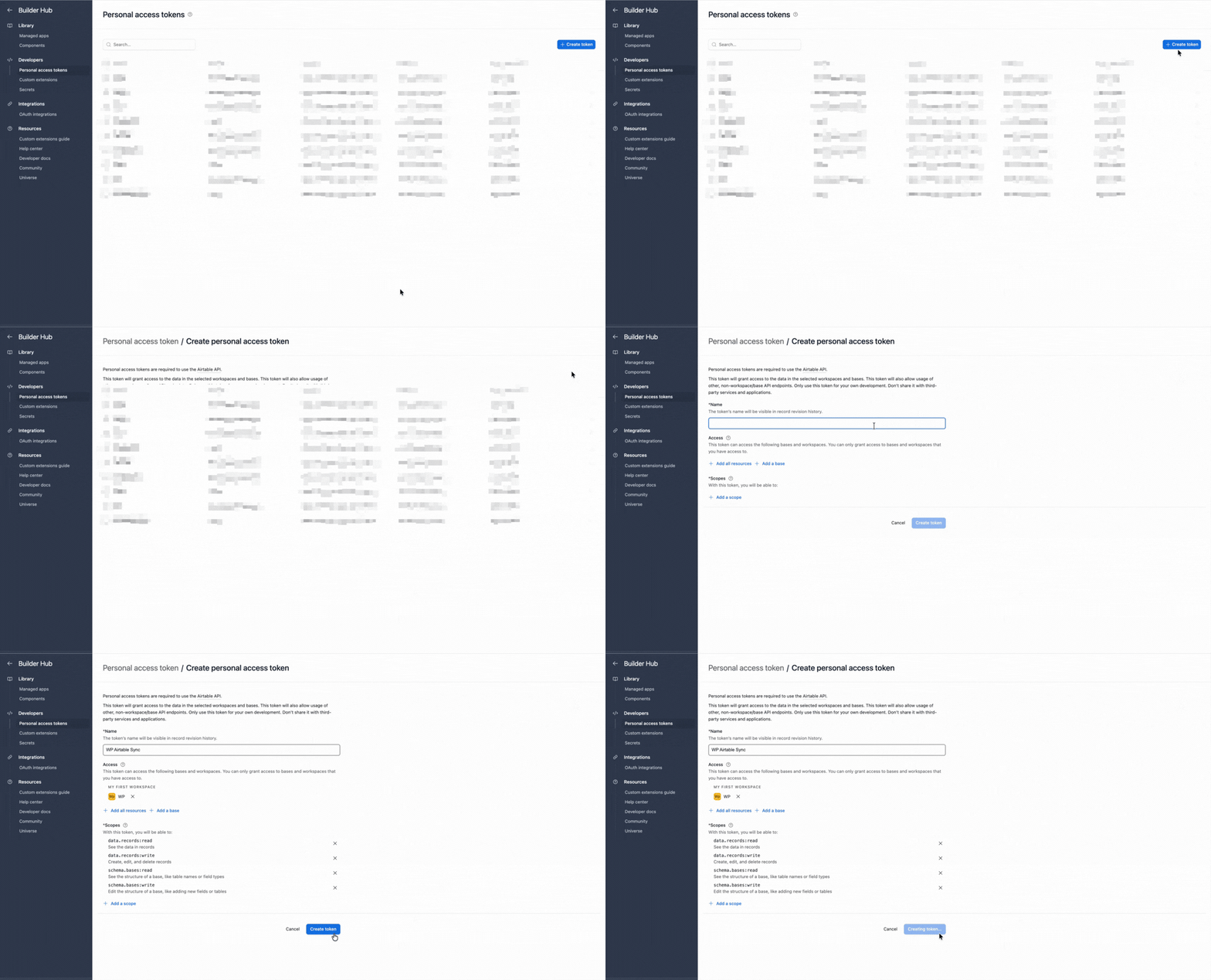
- Create an Airtable token
- Add
schema.bases:read,schema.bases:write,data.records:read, anddata.records:write - Give the token access to the target base

- Choose Use a personal access token, paste the token, and save

- Go to Airtable Sync → Forms and add a connection
- Choose Elementor Forms and select the published Pro Form
- Select a base and table, or create a table from the form fields
If the form is missing, publish or update its page, popup, or template, then reload the connection screen.
Map each field to a compatible Airtable column. Use Long text for messages and create a column when no match exists.
- Give fields clear labels and stable field IDs before mapping.
- Multi-step forms create a record only after the final successful submission.
- Existing email, redirect, and other actions after submit can remain enabled.
- Save the connection and submit known values on the live page
- Check Airtable Sync → Sync Logs
- Confirm the new record and mapped values in Airtable
Send the error text and a screenshot to support@ripplestep.com.
Common Elementor Forms workflows
01Landing-page leads
Send name, email, campaign, and consent fields to an Airtable lead table.
02Popup enquiries
Use a hidden source field to identify the page or campaign that opened the popup.
03Multi-step intake
Store the completed final submission as one Airtable record.
04Lead notifications
Keep Elementor email actions while Airtable receives the operational record.
Form widget reminders
- Publish the page or template before selecting its form in the connection screen.
- Test popups and Theme Builder templates on the front end, not only in editor preview.
- Reopen the mapper after renaming a field or changing its field ID.
- If Elementor Submissions or email actions are enabled, test them alongside Airtable and verify each result separately.
Free vs Pro
| Capability | Free | Pro |
|---|---|---|
| Form connections | 1 active | Unlimited |
| Successful form syncs | Up to 300 per month | Unlimited |
| Field mapping | Core mapping | Core mapping |
| Delivery | Immediate or WP-Cron | Immediate or WP-Cron |
| Sync History | Yes | Yes |
Start on Free to validate one connection. Review the Forms to Airtable product page when you need additional connections or volume. Pro is $99/year.
Troubleshooting
Form not listed under Forms
Save and publish the page that contains the Elementor Pro Form widget, then reload the connection screen. For popup or template forms, confirm that the form appears in the connection screen before relying on that context.
Popup submits but no Sync History row appears
Test the popup on the live front end and confirm that its form appears as the active mapped connection. Template-context discovery can vary, so verify this path before launch.
Airtable reports a field type error
Match Airtable column types to the submitted values, especially acceptance, number, and select fields.
Email fails but Airtable succeeds
Check Sync History separately. A successful Airtable row with a failed email points to Elementor mail or SMTP configuration.
FAQ: Elementor Forms to Airtable
Does this work with Elementor Forms?
Yes, for the Elementor Pro Form widget. Elementor Free alone does not include that widget.
Can I connect without Zapier?
Yes. Create and map the connection under Airtable Sync → Forms.
How do I confirm a submission synced?
Check Sync Logs first, then confirm the record in Airtable. Elementor Submissions alone does not confirm Airtable delivery.
Can I keep Elementor email actions?
Yes. Email actions and Airtable sync can run together.
Next steps
- Install Integration for Airtable free.
- Map one published Elementor Pro Form and submit known test values.
- Confirm the result in Sync History and Airtable before using the connection for live leads.
Also useful
Send Elementor Pro Form entries to Airtable
Install the plugin, map one published form, and verify the first record in Sync History.
Install Integration for Airtable free