
Most teams using Confluence face the same problem: their best documentation never leaves Confluence. It sits in a space that only internal employees can access, while customers — who actually need the information — are left with outdated help articles on the company website.
The right solution isn't to abandon Confluence (your team loves it). It's to connect Confluence to your public website so documentation flows from one to the other, automatically. This guide shows you exactly how to do that using WordPress as your public documentation site.
The Problem with Publishing Confluence Docs Manually
The manual workflow most teams use looks like this:
- Technical writer updates a Confluence page
- Someone notices the public docs are outdated (usually a customer complaint)
- A team member copies the content into WordPress, fixes the formatting, re-uploads images
- Repeat every time something changes
At small scale this is annoying. At scale it's a serious problem — outdated public documentation creates support tickets, damages trust, and wastes hours every week. The fix is a direct sync between Confluence and WordPress.
The Recommended Workflow: Confluence → WordPress
How the automated publishing workflow works
- Documentation team writes and maintains docs in Confluence (where they already work)
- The Content Publisher for Confluence WordPress plugin syncs selected pages to your website
- WordPress serves the documentation publicly — styled with your theme, indexed by Google
- When Confluence pages change, the WordPress versions update automatically on the next sync
- Your team never touches WordPress for documentation updates
This is a true single-source-of-truth setup. Confluence is the source. WordPress is the publication channel. No duplication, no drift, no outdated pages.
How to Set It Up — Step by Step
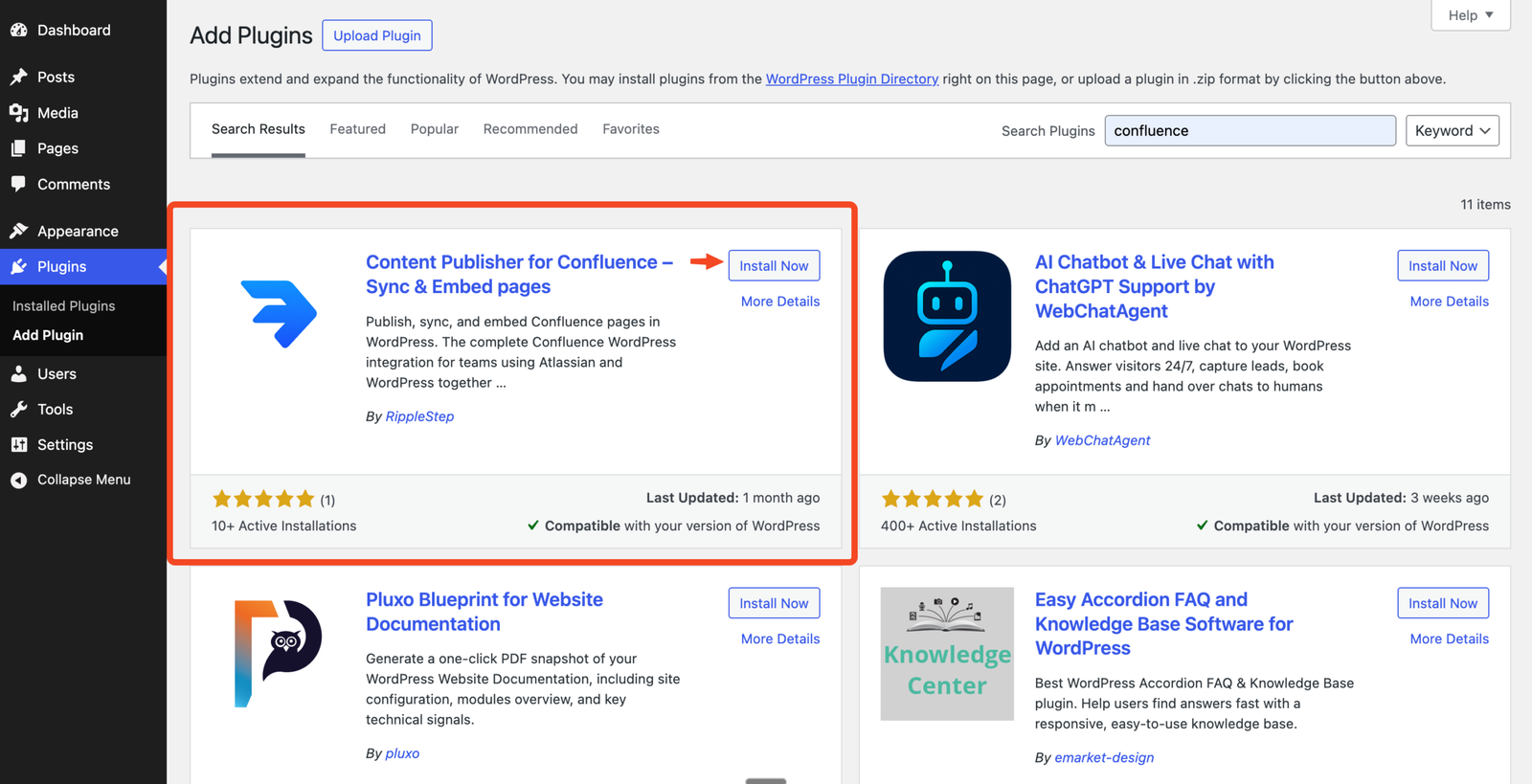
In your WordPress dashboard, go to Plugins → Add New. Search for "Content Publisher for Confluence". Install and activate. The plugin adds a Confluence Publisher menu to your dashboard.
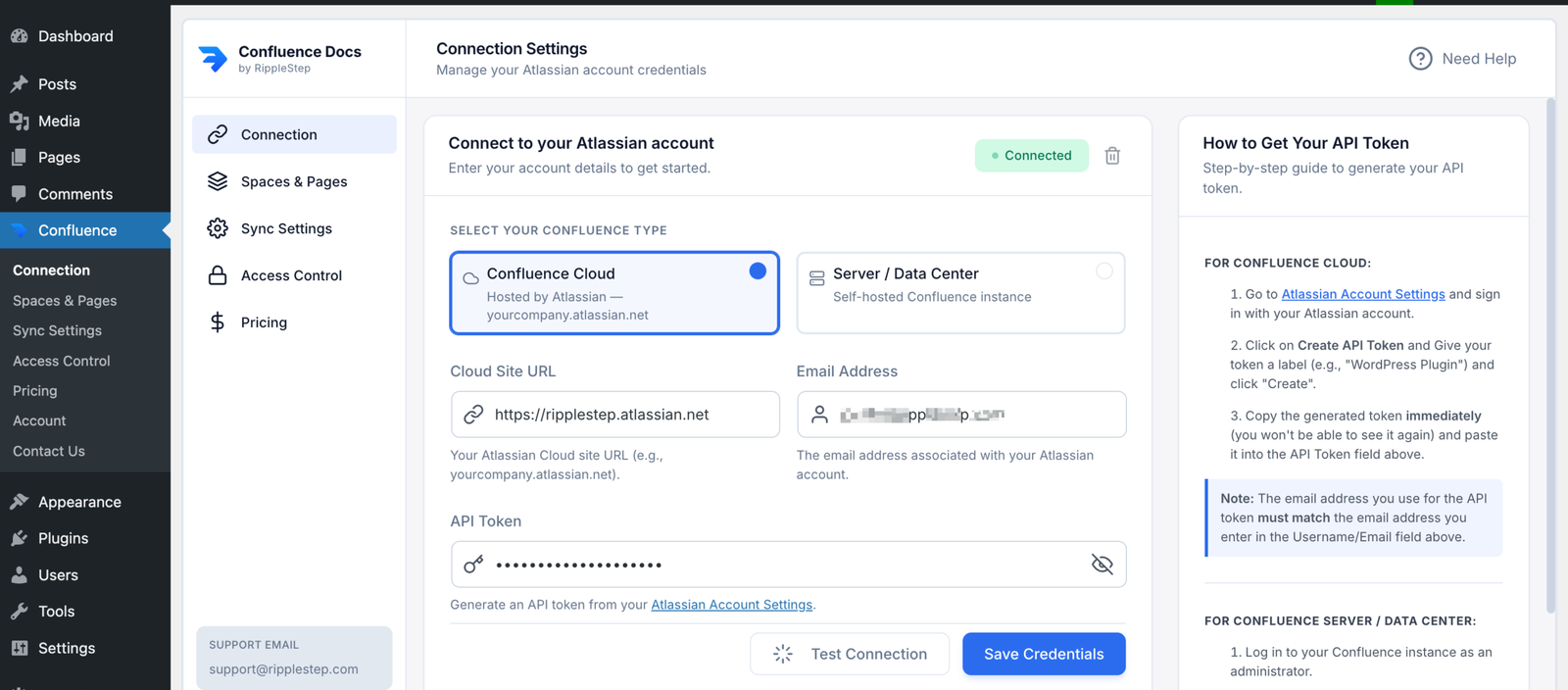
Go to Confluence Publisher → Connection. Enter your Confluence site URL, Atlassian email, and API token. Generate the API token at your Atlassian account security settings.
Click Save & Test Connection — you'll see a green success indicator when connected.
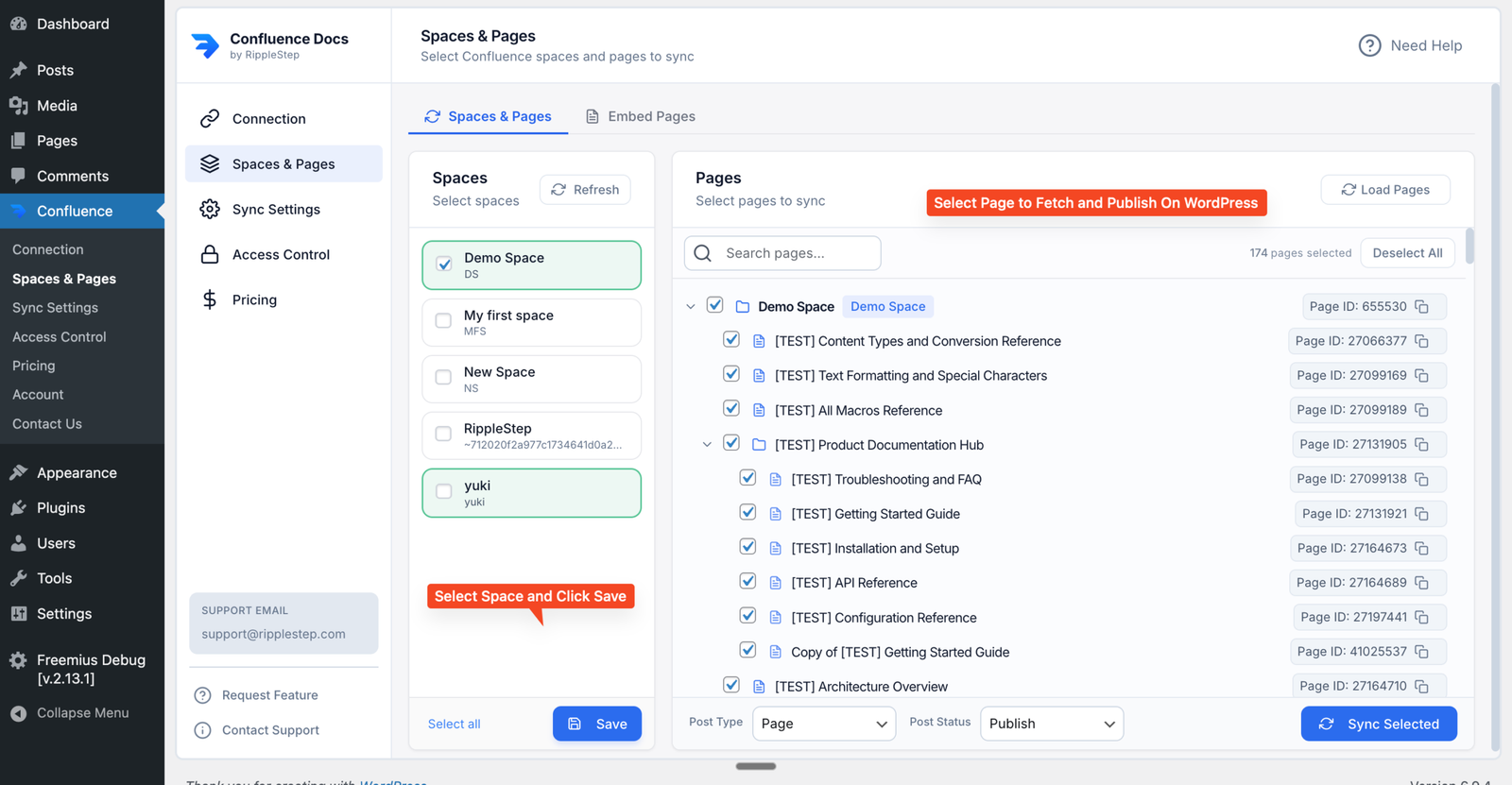
Go to Confluence Publisher → Spaces & Pages. Select the pages you want to publish publicly. You can choose entire spaces or individual pages — and use the hierarchy selector to include or exclude child pages.
Think carefully about which pages belong in your public documentation:
- Customer-facing help articles and guides ✓
- API reference and developer documentation ✓
- Product release notes and changelog ✓
- Internal team processes and meeting notes ✗
- HR policies and employee handbooks ✗
Go to Confluence Publisher → Access Control. Start by choosing your Global Visibility Strategy, which sets the default rule for all synced pages.
- Public: anyone can read the synced documentation pages
- Logged-In Users: only signed-in WordPress users can access pages
- Restricted by Roles: only selected WordPress roles can view pages
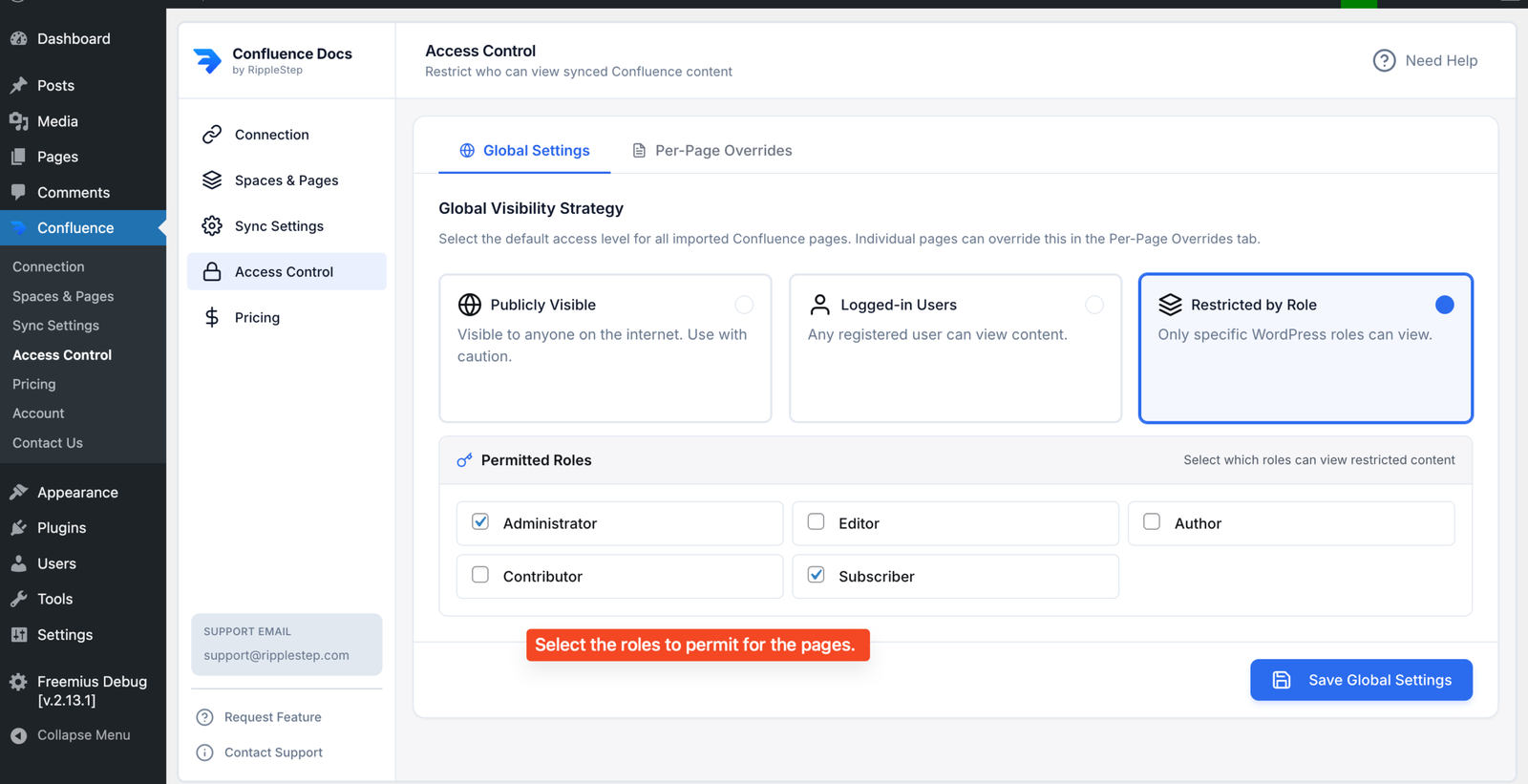
On Pro, each synced page can override the global rule. If no override is set, the page inherits your global visibility strategy automatically.
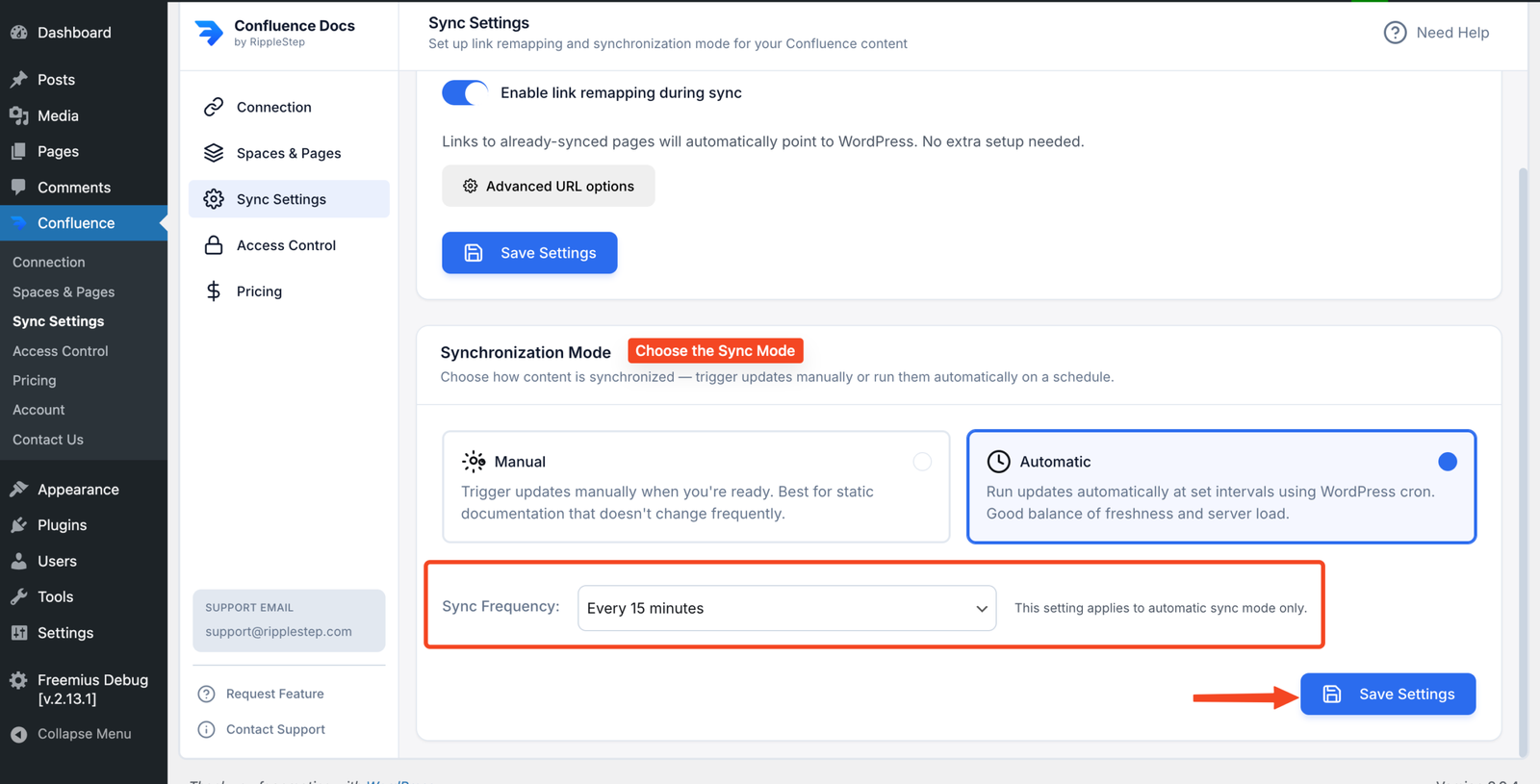
Go to Confluence Publisher → Sync Settings.
- Free plan: Click Sync Now to pull updates manually whenever you want
- Pro plan: Set an automatic schedule — every 15 minutes, hourly, every 6 hours, or daily
For most documentation teams, hourly or daily sync is the right balance. Documentation rarely needs to update in real time.
Click Sync Now. The plugin fetches your selected Confluence pages and creates WordPress pages for each one. Review a few pages on the frontend to confirm formatting looks correct, images are loading, and the page hierarchy reflects your Confluence structure.
Make any WordPress theme adjustments needed for your documentation style (typography, spacing, sidebar layout). Once satisfied, the publishing workflow is live.
SEO Considerations for Published Confluence Docs
One major advantage of publishing through WordPress (vs. leaving docs in Confluence) is that WordPress pages are indexed by search engines. Your Confluence docs can now rank on Google and bring in organic traffic.
- Page titles: Synced from your Confluence page titles — write them with SEO in mind in Confluence
- URLs: WordPress generates clean, readable URLs from page titles
- Internal linking: WordPress SEO plugins (Yoast, RankMath) work on synced pages just like any other WordPress page
- Sitemaps: Synced pages appear in your WordPress sitemap automatically
- Meta descriptions: Add custom meta descriptions in WordPress after syncing — these persist through future syncs
Documentation Publishing Use Cases
SaaS help centers
Write product documentation in Confluence. Publish it to your WordPress help center. Customers find answers on your site, not in support tickets.
Developer documentation
API references, SDK guides, and integration tutorials — written in Confluence, published automatically to your WordPress developer portal.
Product release notes
Publish a living changelog from Confluence to WordPress. Customers stay informed without anyone manually updating the website.
Knowledge base sites
Build a public knowledge base powered by Confluence as the backend. Your support team owns the content, your website team owns the design.
Compliance documentation
Keep security, privacy, and compliance documentation current in Confluence. Publish to your website automatically when policies change.
Partner documentation
Publish partner integration guides and reseller materials from Confluence to a password-protected WordPress section for partners only.
"Our product team updates docs in Confluence after every release. Before this plugin, the website docs would lag by days or weeks. Now they're in sync within an hour of any Confluence edit. Customers notice — support tickets about 'outdated docs' dropped significantly."
— Head of Customer SuccessMixing Public and Private Docs on One Site
Not everything in Confluence should be public. The Pro plan's per-page access control lets you run a mixed documentation site from a single WordPress install:
Public
- Product help center pages
- Knowledge base articles
- SEO-focused documentation pages
Logged-In Users
- Advanced setup and troubleshooting
- Onboarding assets for customers
- Support-related gated pages
Restricted by Roles
- Partner integration guides
- Internal staff knowledge pages
- Role-based playbooks and SOPs
All of these can be synced from the same Confluence account while using one WordPress site with different visibility rules.
Use global defaults plus precise overrides
A clean setup is to choose one global strategy first, then override only pages that need different access.
- Set global to Public for help-center content at scale
- Override premium docs to Logged-In for customer portals
- Restrict sensitive pages to selected WordPress roles
Free vs Pro: Choose Your Publishing Mode
Start with the free plan to validate your workflow, then upgrade when you need automation and fine-grained access controls.
Starter
Best for small public documentation sets and initial evaluation.
- Up to 10 pages synced
- 1 Confluence space
- Manual sync only
- Basic access control
- Community support
FAQ
On the Pro plan, yes — set a sync schedule (15min, hourly, 6hrs, or daily) and WordPress updates automatically. On the free plan, run Sync Now to pull updates manually. Only changed pages are re-synced each time.
Yes, with the Pro plan. Per-page access control lets you set public, logged-in only, or role-restricted visibility for each synced page independently. The free plan supports global access settings only.
Yes. WordPress pages are indexed by search engines. Your Confluence documentation becomes publicly discoverable when published through WordPress. Use an SEO plugin like Yoast or RankMath to optimize titles and meta descriptions for better rankings.
The plugin syncs content from Confluence. WordPress-side customizations like custom meta descriptions, categories, and featured images are preserved through subsequent syncs. Only the page body content is updated when Confluence changes.
Yes. Once set up, documentation teams work entirely in Confluence — which they already know. The sync happens automatically. No one on the docs team needs to touch WordPress to keep the public documentation current.
Publish your Confluence docs publicly today
Install the free plugin and start syncing up to 10 Confluence pages to your WordPress site. Upgrade to Pro for unlimited pages and automated sync.
Install Content Publisher for Confluence Free →