
If your team writes documentation in Confluence and publishes it on a WordPress site, you already know the pain. Someone manually copies content, fixes the formatting, re-uploads images, and tries to remember to update WordPress every time something changes in Confluence. It breaks down fast.
This guide shows you exactly how to fix that using the Content Publisher for Confluence plugin — step by step, in under 10 minutes, no code required.
What You Need
Have these ready before you start and the setup will take under 10 minutes.
- A WordPress site (self-hosted, WordPress.org)
- An Atlassian Confluence Cloud account
- Your Confluence site URL (e.g.
yourteam.atlassian.net) - An Atlassian API token (generated in Step 2 below)
- The Content Publisher for Confluence plugin (free on WordPress.org)
The plugin currently connects to Confluence Cloud. If you're on Confluence Server or Data Center, check the plugin documentation for compatibility notes before proceeding.
How to Sync Confluence to WordPress — Step by Step
Follow these six steps to set up your Confluence to WordPress sync. The whole process takes about 10 minutes.
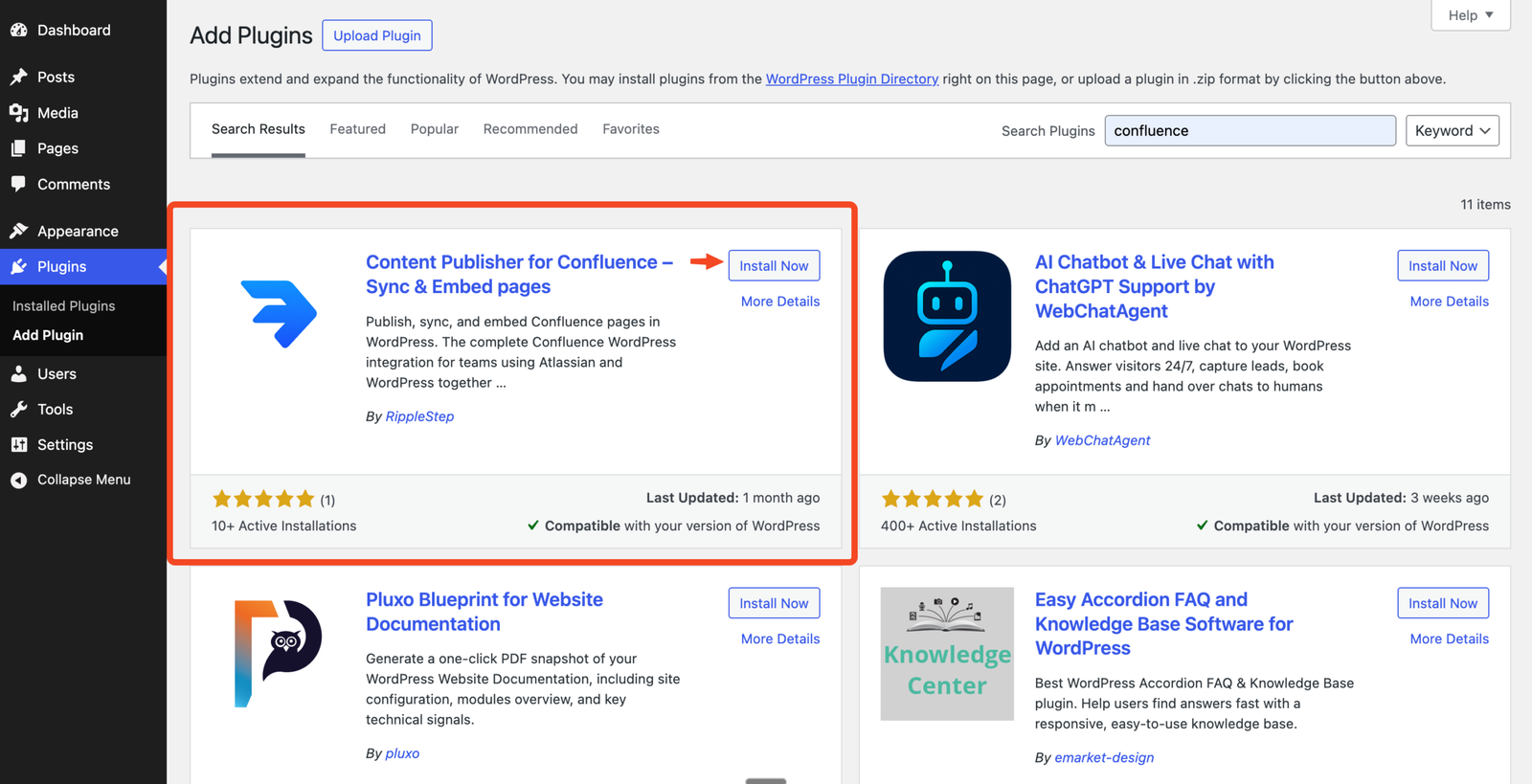
In your WordPress dashboard, go to Plugins → Add New. Search for "Content Publisher for Confluence". Click Install Now, then Activate. A new Confluence Publisher menu item will appear in your WordPress sidebar.
2.1 Open Atlassian account settings
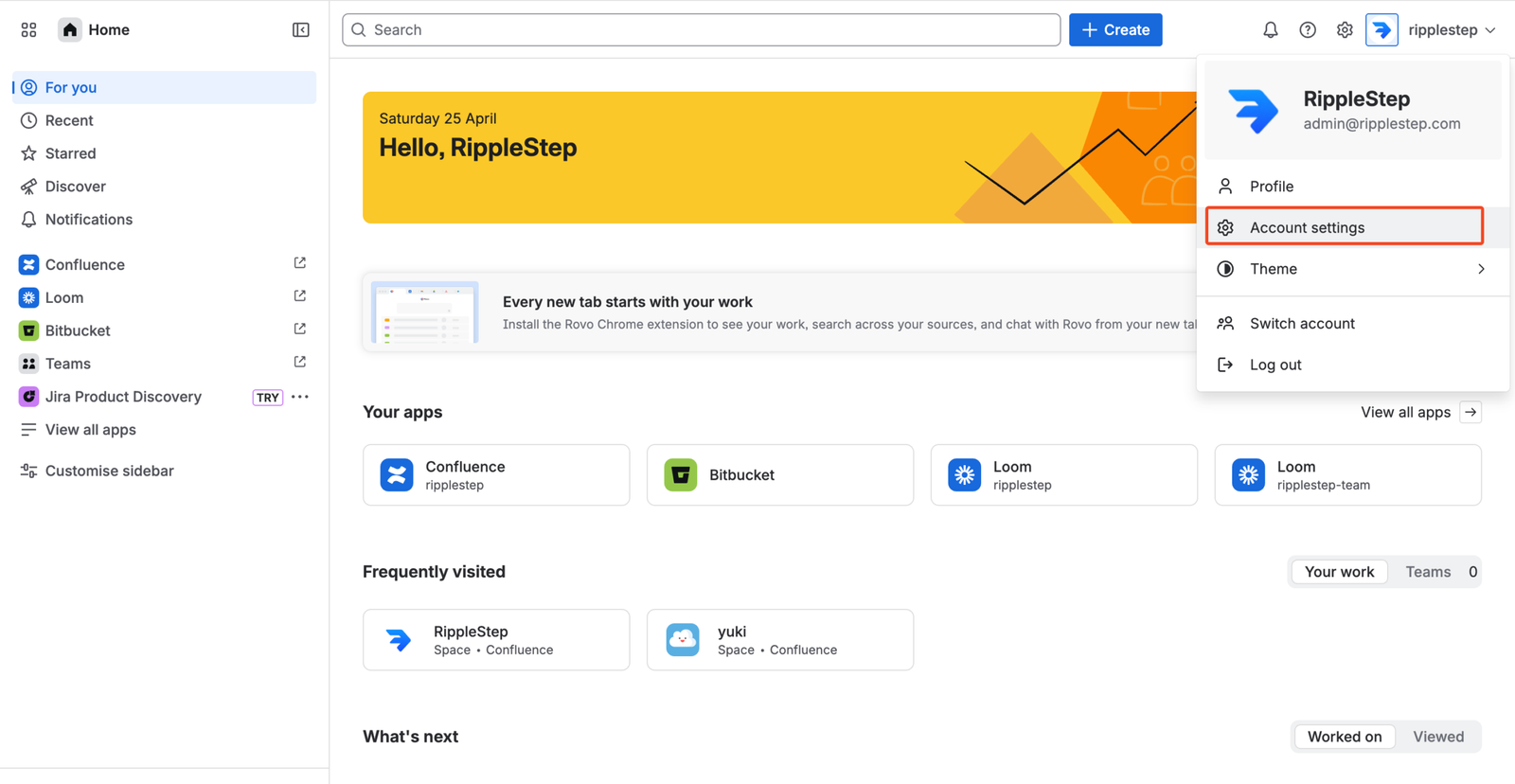
Log into Atlassian, click your profile picture in the top right, and select Account Settings .
2.2 Go to Security → API Tokens
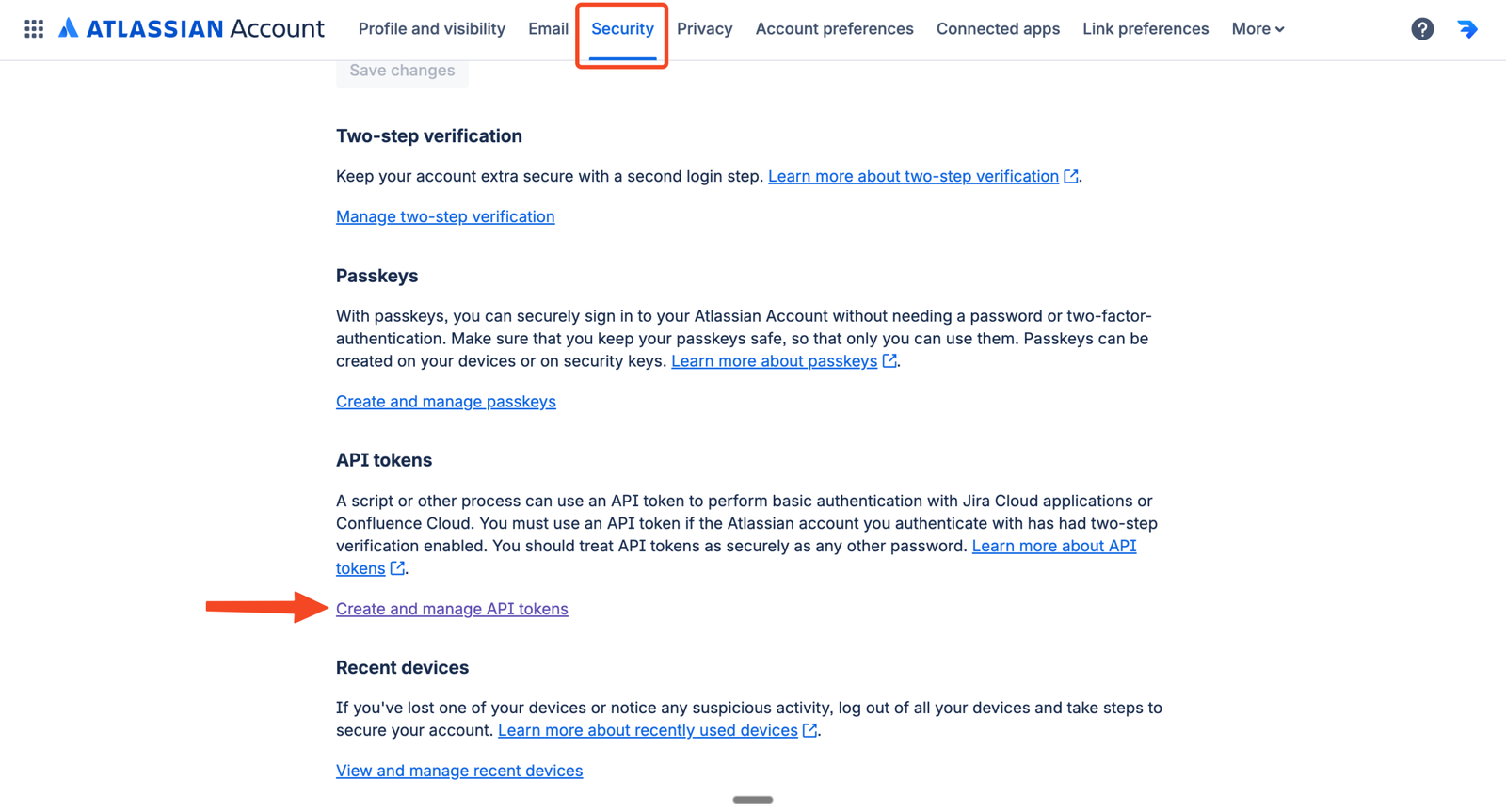
Click the Security tab. Find the API tokens section and click Create or Manage API token.
2.3 Name and copy the token
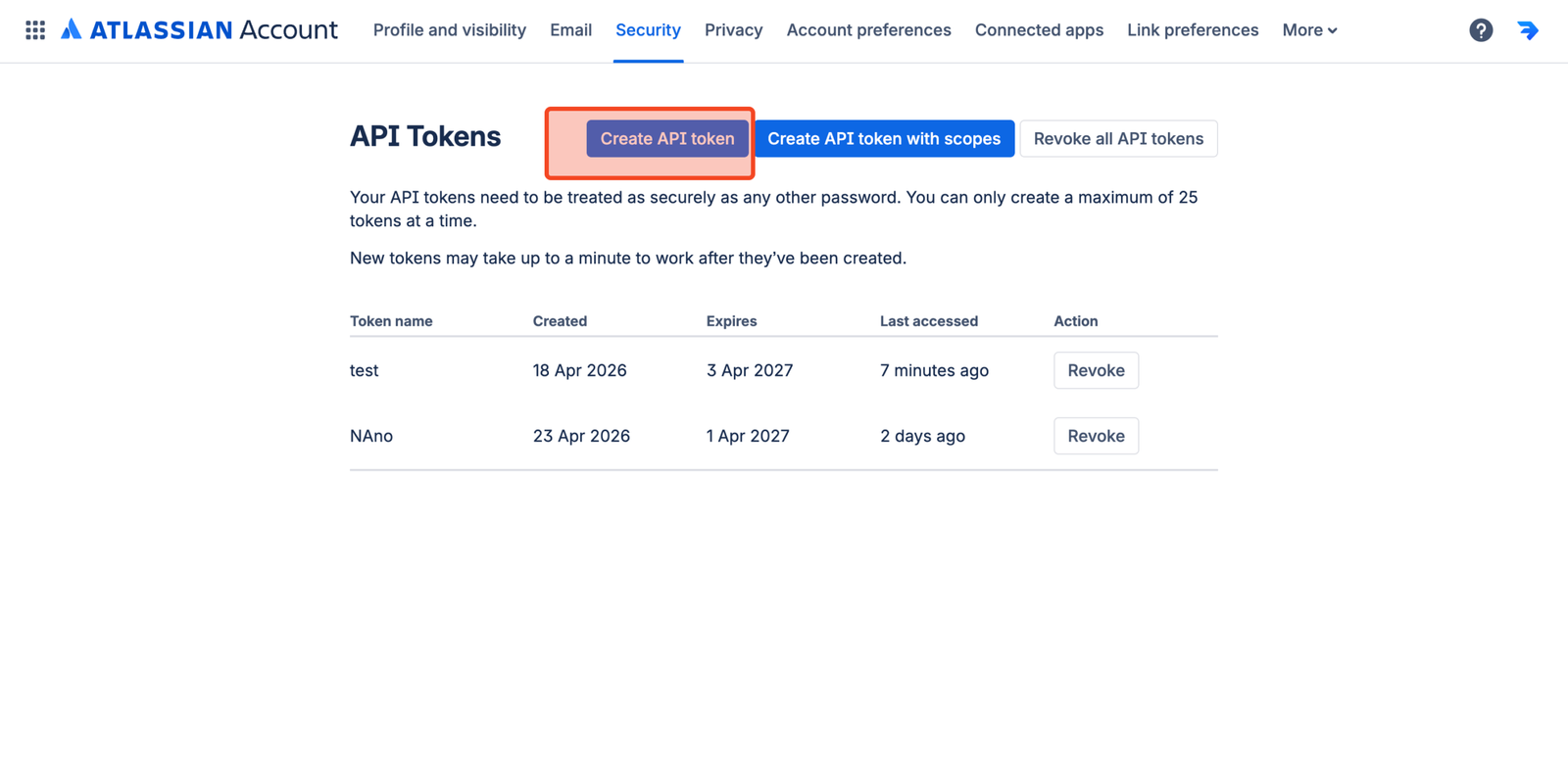
Give it a label like "WordPress Sync". Click Create and immediately copy the token — Atlassian won't show it again after you close the dialog.
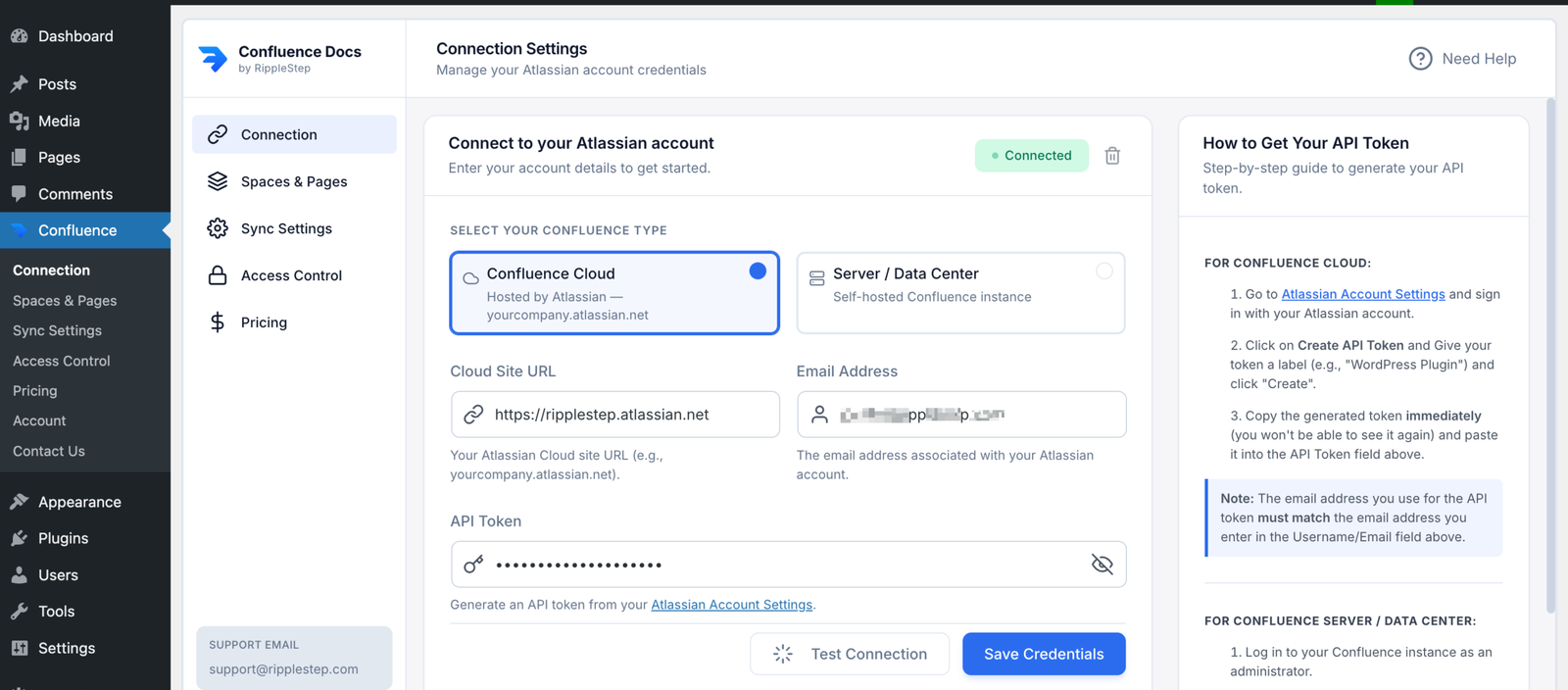
In WordPress, go to Confluence Publisher → Connection. Fill in these fields:
- Confluence Type: Cloud or Data Center
- Confluence Site URL — your Atlassian domain (e.g.
yourteam.atlassian.net) - Email Address — the email on your Atlassian account
- API Token — the token you just generated
Click Save & Test Connection. The plugin verifies credentials and shows a green success message when connected.
Go to Confluence Publisher → Spaces & Pages. You'll see all the Confluence spaces your account has access to. Select the space (or spaces on Pro) you want to pull from, then choose which specific pages to sync.
- Sync an entire space
- Select individual pages
- Include or exclude child pages
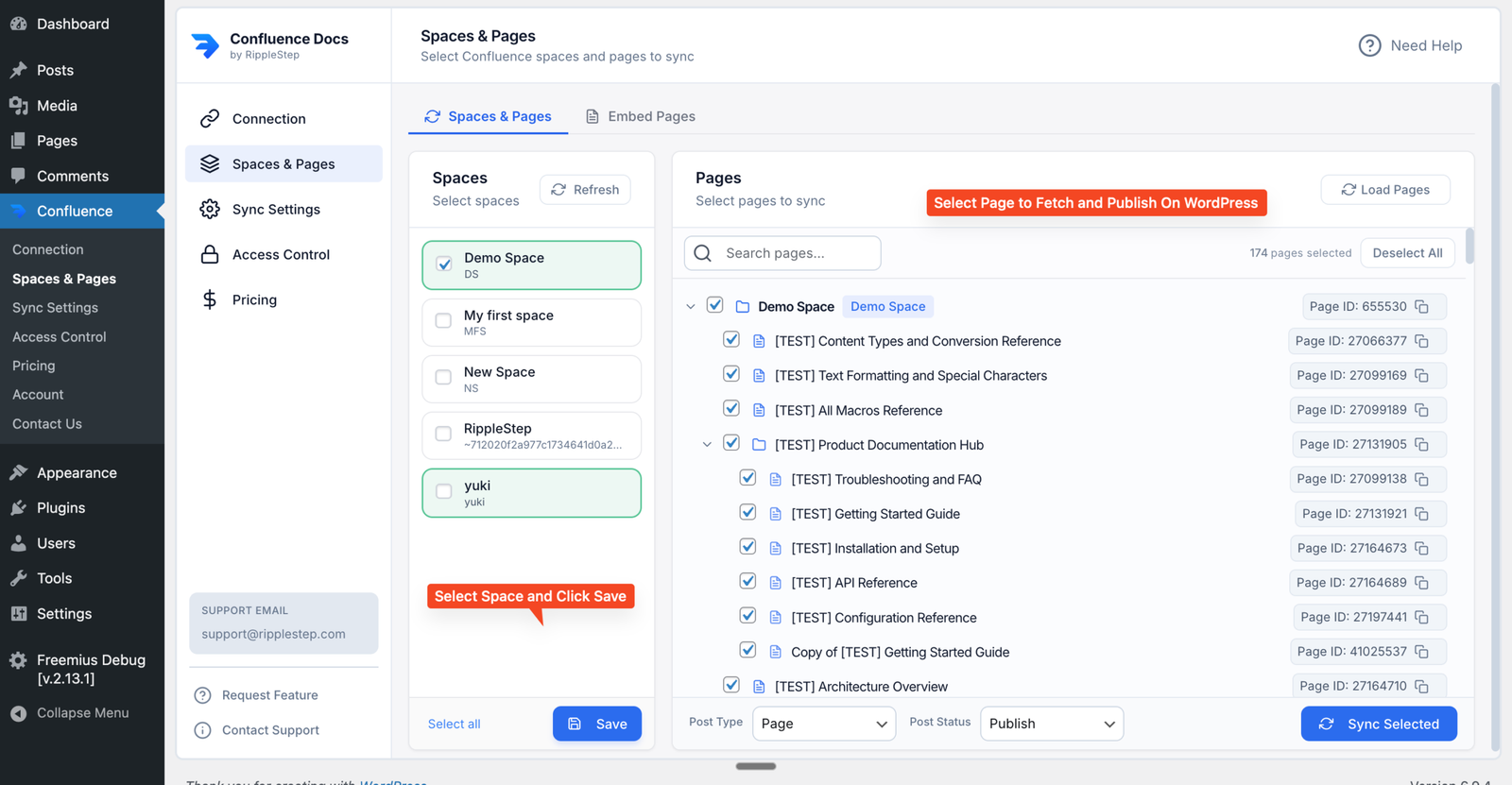
The free plan supports up to 10 pages from a single Confluence space. Upgrade to Pro for unlimited pages and multiple spaces.
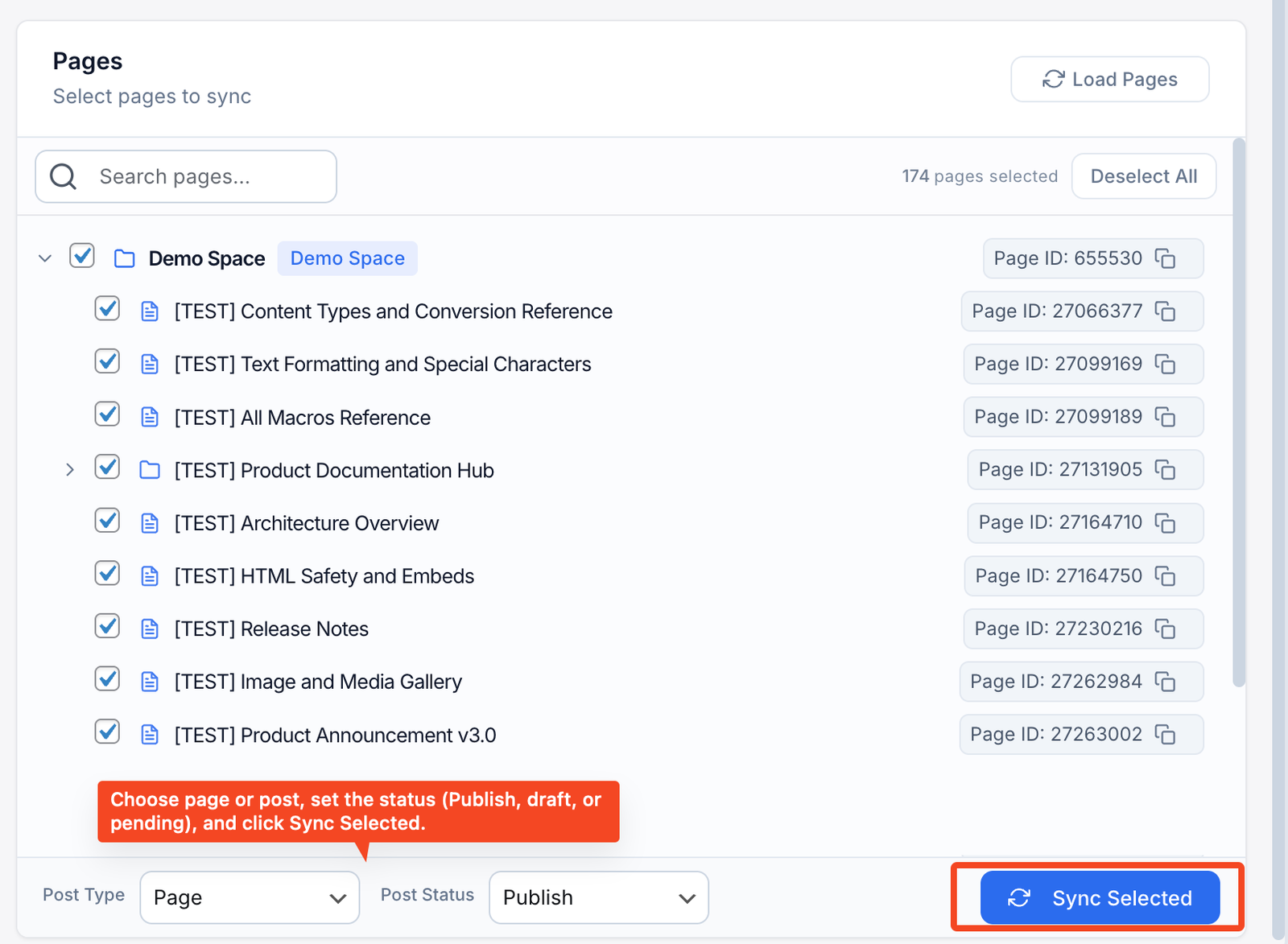
Click Sync Now. The plugin fetches your selected Confluence pages and creates them as WordPress pages. When complete, go to Pages in your WordPress dashboard. Your Confluence pages are now there with:
- Headings and subheadings preserved
- Bullet lists, numbered lists, and tables intact
- Images transferred to your WordPress media library
- Code blocks formatted correctly
- Page hierarchy (parent/child relationships) maintained
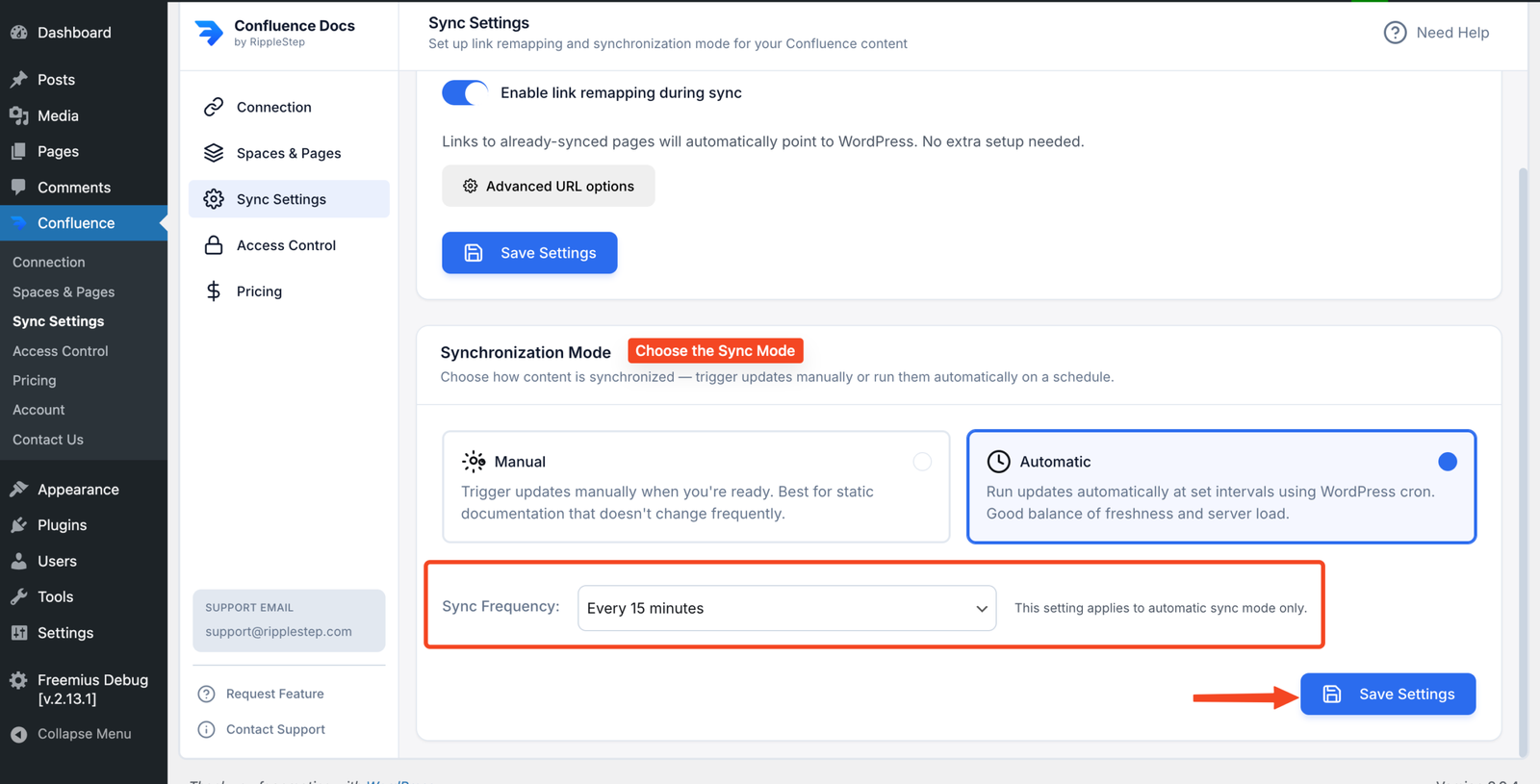
Go to Confluence Publisher → Sync Settings. Choose how your pages stay in sync:
- Manual sync (Free & Pro) — click Sync Now whenever you want to pull the latest content
- Automated sync (Pro only) — set a schedule and WordPress stays current automatically
Pro sync intervals: every 15 minutes, every hour, every 6 hours, or daily.
If you hit any issue during installation, connection, or page selection, our team can help you troubleshoot quickly.
Email support@ripplestep.com with a short description (screenshots welcome), and we will guide you through the next step.
What Gets Synced — and What Doesn't
Here is a quick view of what the plugin can transfer directly and what still needs manual handling in WordPress.
- Page title and full body content
- Headings (H1-H6), bold, italic, and inline code
- Bullet, numbered, and nested lists
- Tables with headers and cell data
- Images and file attachments
- Code blocks with syntax highlighting
- Page hierarchy (parent/child structure)
Confluence-specific macros ( status badges, Jira issue lists) have no direct WordPress equivalent and are skipped. Confluence comments, task lists, and page-level permissions are not transferred. Access control is managed separately using the plugin's WordPress access controls.
Who Uses Confluence to WordPress Sync
Documentation teams
Write once in Confluence, publish automatically to a public help center or docs site on WordPress.
SaaS companies
Keep product documentation current on your marketing site without leaving Confluence.
IT & ops teams
Publish internal Confluence policies to a WordPress intranet — with role-based access control.
Marketing teams
Turn Confluence content calendars and brand guides into published WordPress pages instantly.
Developer teams
Sync API documentation and technical guides from Confluence to a public WordPress developer portal.
Agencies
Deliver client documentation sites powered by Confluence, published through WordPress.
Free vs Pro: Which Plan Do You Need?
Start free, upgrade when you need more volume or automated sync.
Starter
Perfect for small docs sets and evaluating the integration.
- Up to 10 pages synced
- 1 Confluence space
- Manual sync only
- Page embedding via shortcode
- Basic access control
- Community support
Troubleshooting Common Sync Issues
Double-check your Confluence site URL format: it should be yourteam.atlassian.net with no trailing slash. Verify your API token is still active in Atlassian account settings under Security → API tokens.
Check that synced pages are not set to draft status in WordPress. Also confirm the Confluence pages are published (not draft) in Confluence — the plugin only syncs published pages.
Large images may time out on the first sync. Run a manual Sync Now again — the plugin retries any failed assets. Also check your WordPress max upload size limit in Settings → Media.
Confluence-specific panel types and complex macros may need minor cleanup in WordPress. The plugin converts all standard formatting — complex macros have no direct WordPress equivalent and are skipped.
"We were spending 3–4 hours a week keeping our WordPress help center in sync with Confluence. Now we set it to sync hourly and never think about it. The kind of boring problem that was eating real time."
— Documentation Lead, B2B SaaS companyFAQ — Confluence WordPress Sync
On the free plan, click Sync Now to pull updates. On Pro, automated sync handles this on your chosen schedule (15min, hourly, 6hrs, or daily). Only pages that have changed since the last sync are re-fetched.
Yes. The plugin includes access control to restrict pages to logged-in users or make them public. Pro adds per-page control so you can set different visibility rules for each synced page — by WordPress role.
Deleted Confluence pages are not automatically removed from WordPress — this prevents accidental data loss. You can manually delete them from the WordPress Pages list when needed.
Multiple spaces is a Pro feature. The free plan supports one space. With Pro, you can pull from as many spaces as your Confluence account has access to.
Yes. The plugin works with both Confluence Cloud and Confluence Data Center, so you can sync and publish documentation to WordPress regardless of which Confluence deployment your team uses.
Yes. The plugin supports shortcode embedding so you can display a specific Confluence page inside any WordPress post or page without a full sync. See our embedding guide for details.
Ready to stop copy-pasting?
Install the free plugin, connect your Confluence account, and sync your first pages to WordPress in under 10 minutes.
Install Content Publisher for Confluence Free →