
When you publish Confluence documentation to WordPress, you don't always want every visitor to see every page. Some content should be public — your getting started guide, your feature overview, your pricing FAQ. Other content belongs behind a gate: advanced configuration guides for paying customers, API references for developer tier users, or internal runbooks that should never surface publicly at all.
WordPress has a built-in user role system — Subscriber, Customer, Editor, Administrator, and any custom roles your plugins add. Content Publisher for Confluence Pro lets you tie individual synced pages to those roles, so each page is visible only to users with the right access level.
No third-party membership plugin. No custom code. Just built-in access controls with a global visibility strategy and per-page overrides when needed.
Role-based restrictions on synced pages require Content Publisher for Confluence Pro ($99/year). The free plan publishes all synced pages at public visibility.
How WordPress User Roles Work
WordPress ships with five default roles, ordered from least to most capable: Subscriber, Contributor, Author, Editor, and Administrator. Plugins like WooCommerce and membership tools add their own roles — Customer, Member, Premium, and so on.
When you restrict a synced Confluence page to a specific role, WordPress checks the current user's role before displaying the page. Users with that role (or a higher-capability role) see the content. Everyone else is redirected or shown a login prompt.
No login required. Visible to all visitors including search engines.
Visible to anyone with a WordPress account, regardless of role.
Visible only to users with a specific role — e.g. paying WooCommerce customers.
Visible only to admins. Useful for internal docs that should never be public.
Setting Up Access Control (Global + Per-Page)
Before configuring access control, connect Confluence to WordPress and run at least one sync so your pages exist in WordPress. Follow the sync setup guide if you haven't already. Access control settings apply to already-synced pages as well as future syncs.
Click Upgrade to Pro and complete checkout. Then enter your licence key at Content Publisher → Settings → Licence. The access control options appear immediately in your sync configuration once the licence is active.
Navigate to Content Publisher → Access Control. Here you can set a Global Visibility Strategy for all synced pages, and then apply Per-Page Override for exceptions.
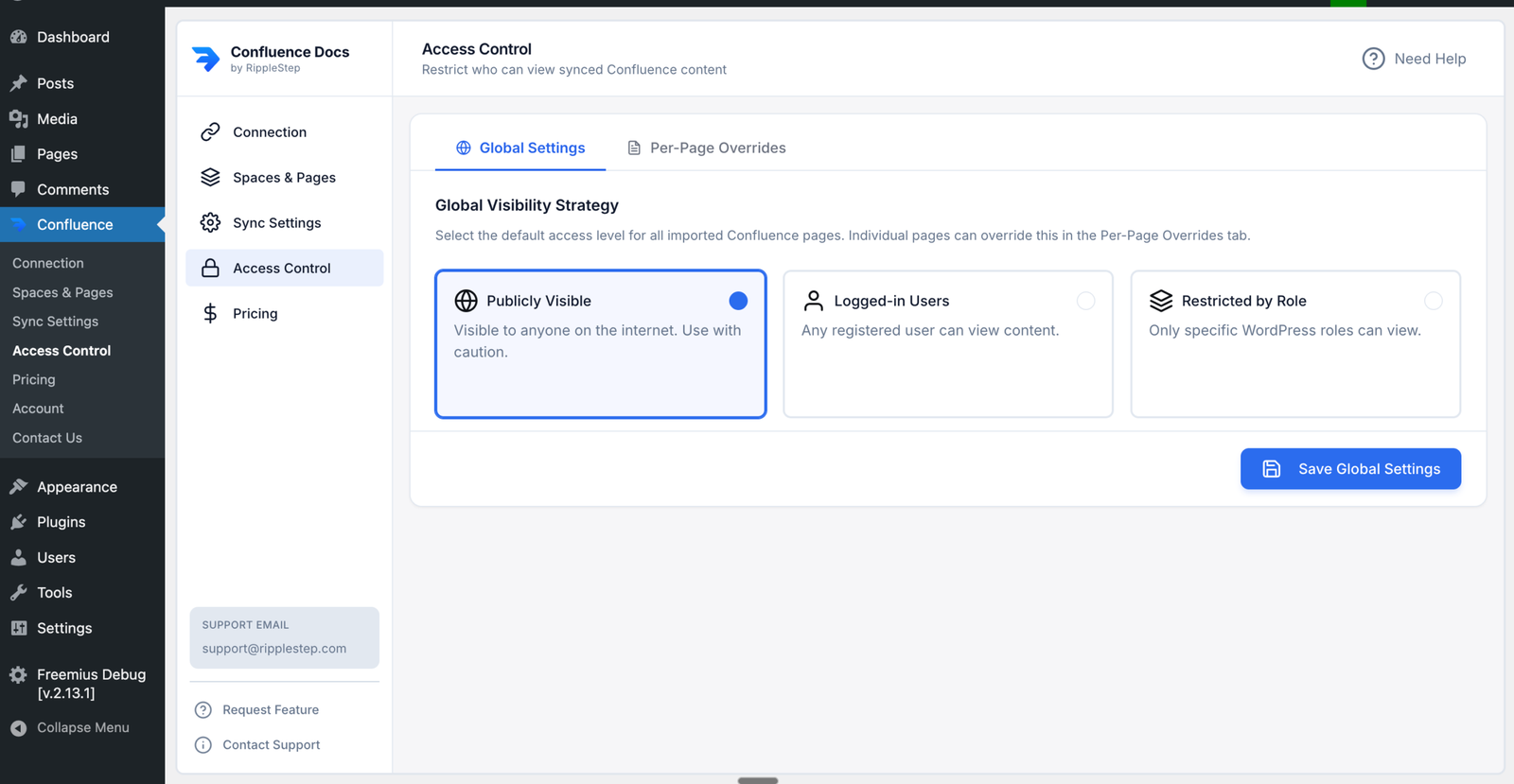
Start by choosing the default rule for all synced pages. The global options are:
- Public — visible to all visitors, no login required
- Logged In — any authenticated WordPress user can view
- Restricted by Roles — only selected WordPress roles can view
The role list includes default WordPress roles plus custom roles added by plugins (for example WooCommerce customer roles).
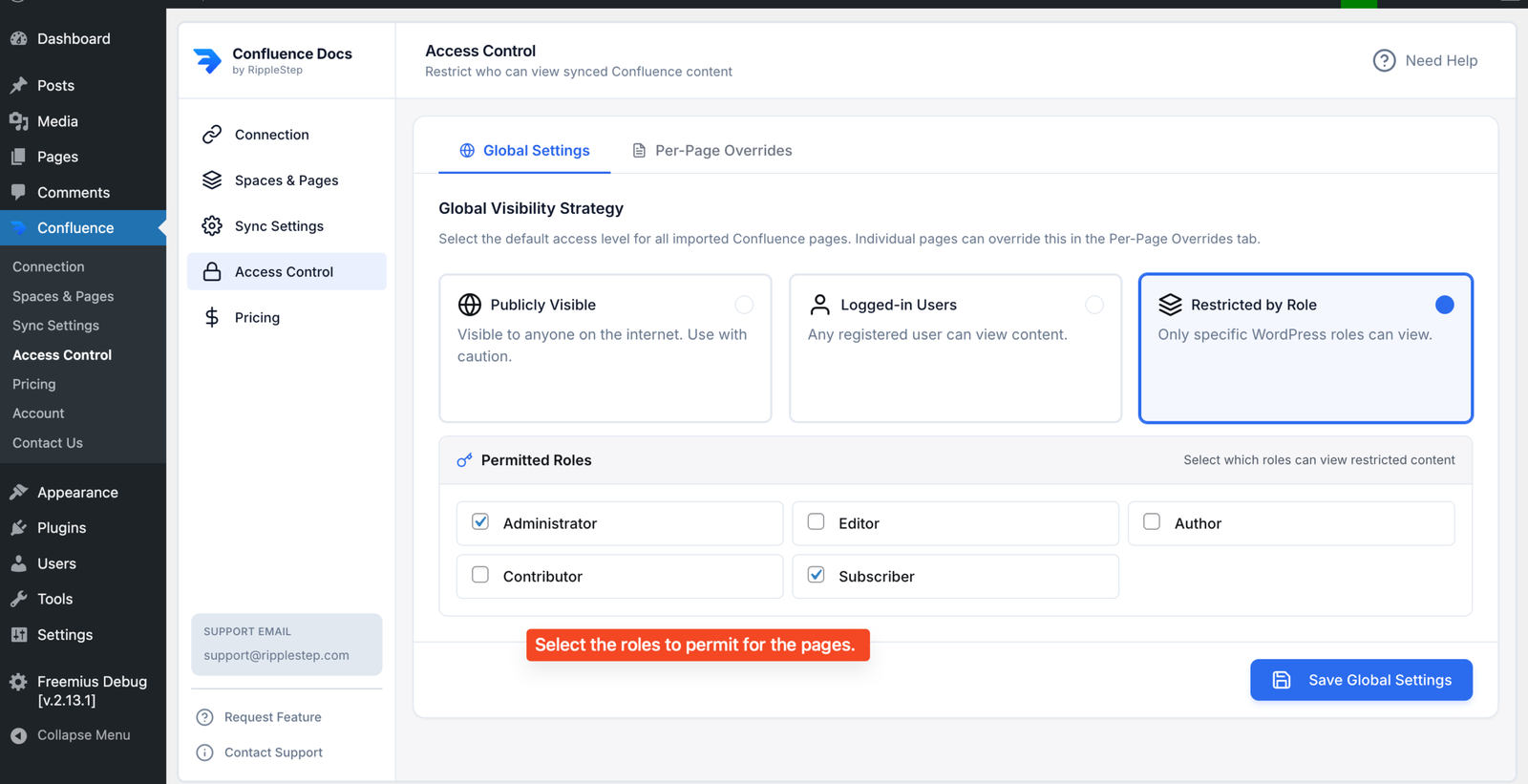
After setting the global rule, override only specific pages that need different access. If no page override is selected, that page automatically follows the global strategy.
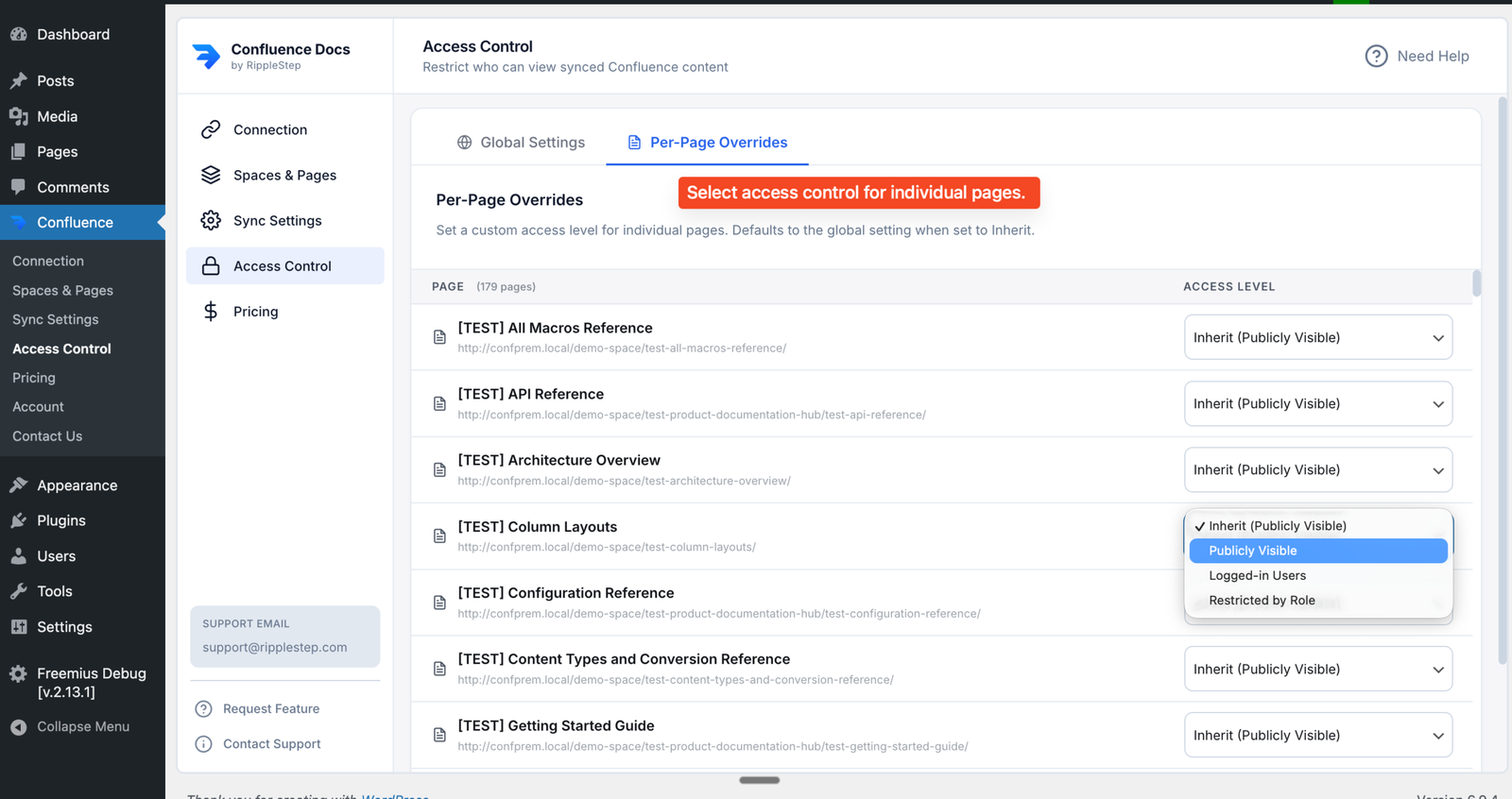
Now define exceptions for individual pages using Per-Page Override. For any specific page, choose a different rule than the global default when needed.
- Public page override: keep pricing docs public even if global is Logged In
- Logged In override: require login for onboarding docs while global stays Public
- Restricted by Roles override: lock advanced docs to Customer, Partner, or custom roles
- No override selected: page automatically inherits the Global Visibility Strategy
Use global strategy for the default behavior across your full documentation set, then apply per-page overrides only where the access requirement is different.
Click Save Access Settings. The rules apply immediately - no full sync required. Validate both global behavior and overridden pages:
- Use your browser's incognito mode to test the logged-out experience
- Create test users with different roles to verify restricted-role behavior
- Confirm pages with no override inherit the global visibility strategy
- Access control settings persist across subsequent syncs
Access Control Patterns by Team Type
| Team | Public Pages | Gated Pages | Role Used |
|---|---|---|---|
| SaaS Product | Getting started, feature overview | Advanced config, API reference | Customer / Subscriber |
| E-commerce | Product guides, FAQs | Wholesale pricing docs, B2B terms | Custom "Wholesale" role |
| IT / Ops | Employee handbook, IT policies | System runbooks, admin procedures | Editor / Administrator |
| Training / eLearning | Course previews, syllabus | Full course materials, assessments | Subscriber (enrolled student) |
| Agency / Consulting | Public case studies, approach | Client project docs, deliverables | Custom "Client" role |
Pairing access control with WooCommerce
- WooCommerce automatically assigns the Customer role to users who complete a purchase
- Restrict your advanced documentation to the Customer role — instant "docs for paying customers only"
- No MemberPress, Restrict Content Pro, or other membership plugin required
- Works with any WooCommerce product type: one-time, subscription, or course
Who Needs Role-Based Doc Restrictions
SaaS Teams
Show your getting started guide to everyone. Gate your advanced integration docs to users on paid plans — using WooCommerce or your own role setup.
IT Administrators
Publish employee-facing IT policies publicly. Keep system administration runbooks restricted to the Administrator role only.
Membership Sites
Write all your member content in Confluence. Publish it to WordPress and restrict each article to the appropriate member tier role.
Agencies
Create a custom "Client" role in WordPress. Sync client deliverables from Confluence and restrict them to that role — each client sees only what they should.
Free vs Pro: Which Plan Do You Need?
Start free, upgrade when you need more volume, automation, and advanced access controls.
Starter
Great for basic publishing and testing your workflow.
- Up to 10 pages synced
- 1 Confluence space
- Manual sync only
- Public visibility only
- Community support
Gate Your Confluence Docs by WordPress Role
Per-page access control is included in Content Publisher for Confluence Pro. $99/year — unlimited pages, automated sync, and role-based restrictions on every page.
Upgrade to Pro →