
Here's a situation that comes up constantly: your team writes great documentation in Confluence. But when someone from outside the company — a customer, a partner, a new user — needs to read it, you hit a wall. You can't share a Confluence link with them unless they have an Atlassian account. And giving every reader a $5–$10/month Confluence license just to read a few pages makes no sense.
The solution is simple: publish those Confluence pages to WordPress. WordPress is a public website. Anyone can visit it. No login, no license, no friction. Your team keeps writing in Confluence. The public reads it on your site. Best of both worlds.
"We had 40+ pages of product documentation in Confluence but couldn't share them with customers without adding them as Atlassian users. Publishing to WordPress was the obvious fix."
— Documentation Lead, B2B SAAS StartupWhy Confluence Doesn't Work for Public Docs
Confluence is built for internal teams. By default, all content is behind authentication. While Atlassian does offer a "public space" setting in some plans, it has limitations: the URL looks like yoursite.atlassian.net/wiki/spaces/..., you can't style it to match your brand, it doesn't get indexed well by search engines, and it doesn't integrate with your website's navigation, CTA flows, or analytics.
For truly public documentation — the kind that lives on your website, ranks on Google, and flows seamlessly from your product pages — you need a proper public site. WordPress gives you that.
A public Confluence space is visible to the internet, but it lives on Atlassian's domain, uses Confluence's default layout, and offers no control over SEO, design, or user experience. Publishing to WordPress gives you full control.
The Right Approach: Sync Confluence to WordPress
Rather than copying and pasting pages from Confluence into WordPress (and then manually updating them every time something changes), the smarter approach is to use a plugin that handles the sync for you.
Content Publisher for Confluence connects your Confluence Cloud account to your WordPress site. You choose which pages to sync. The plugin pulls the content, converts it to WordPress blocks, and publishes it. When you update a page in Confluence, you sync again — either manually or on an automated schedule — and WordPress reflects the change.
Your readers see clean, public WordPress pages. They never touch Confluence. Your writers stay in Confluence. Nobody buys extra licenses.
Step-by-Step Setup
In your WordPress admin, go to Plugins → Add New. Search for Content Publisher for Confluence. Install and activate the plugin. It works on any self-hosted WordPress site running 5.8 or later.
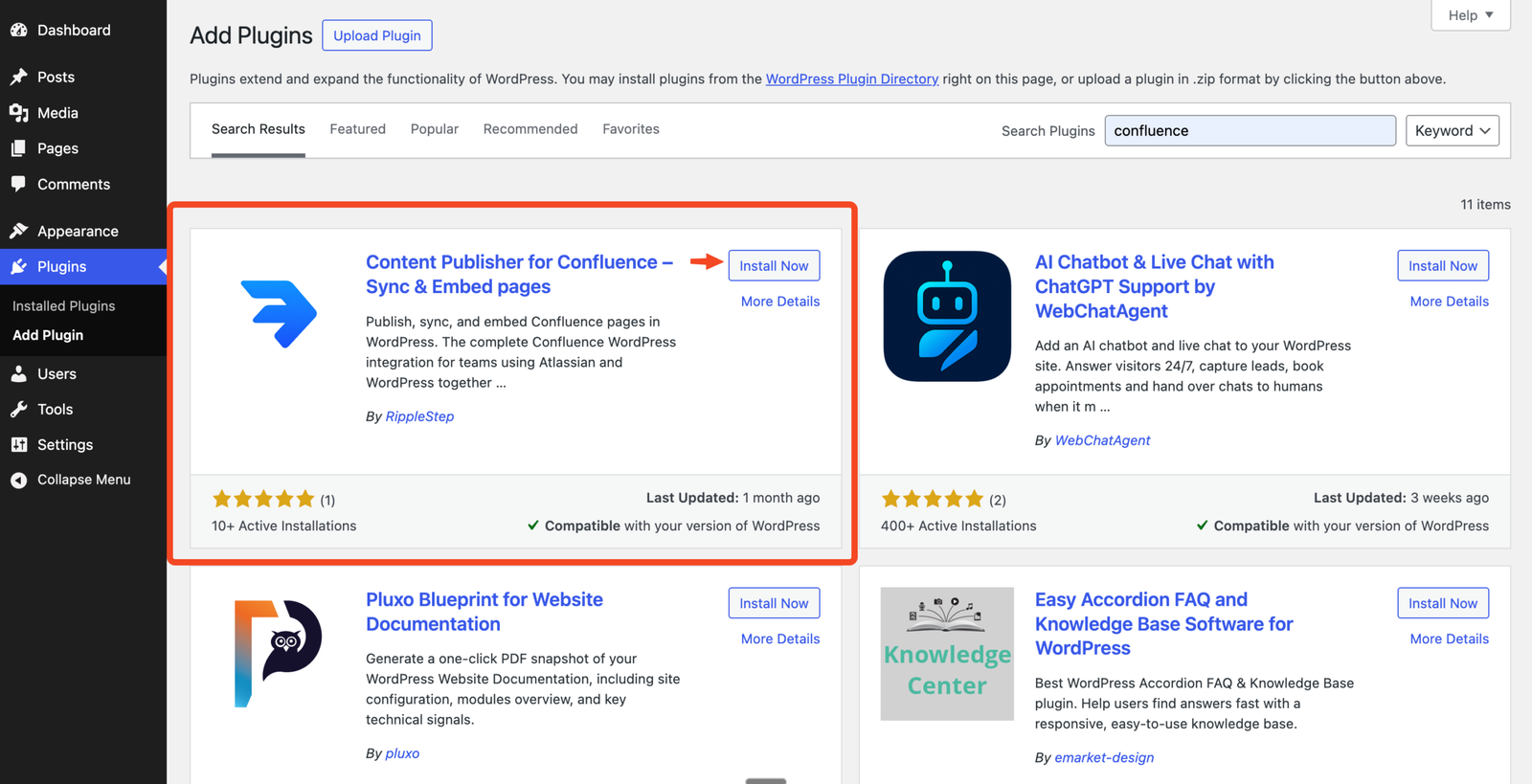
- The free plan syncs up to 10 pages from a single Confluence space
- Upgrade to Pro for unlimited pages, unlimited spaces, and automated sync
Log in to your Atlassian account at id.atlassian.com. Go to Security → API tokens → Create API token. Give it a name like "WordPress Publisher" and copy the token value.
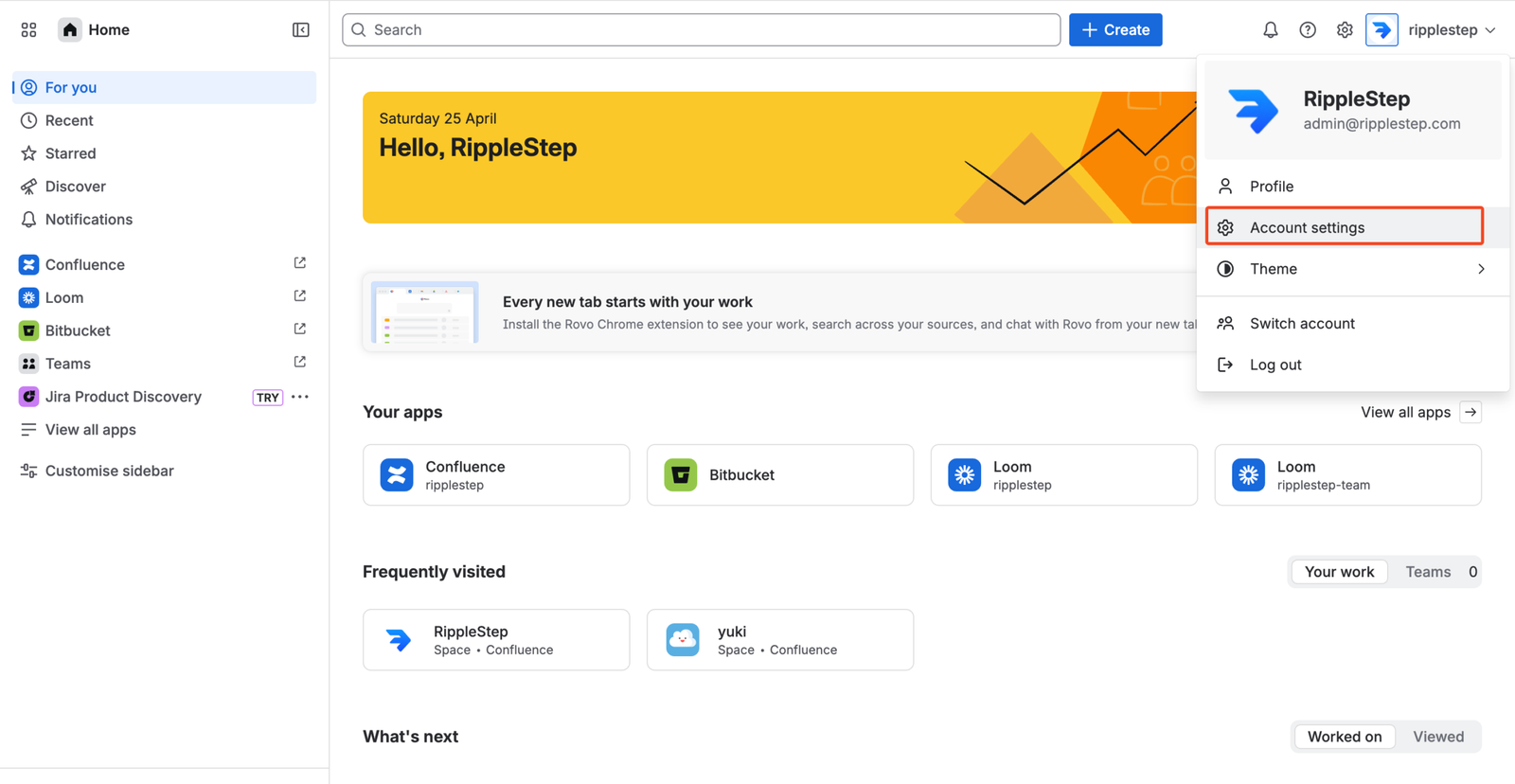
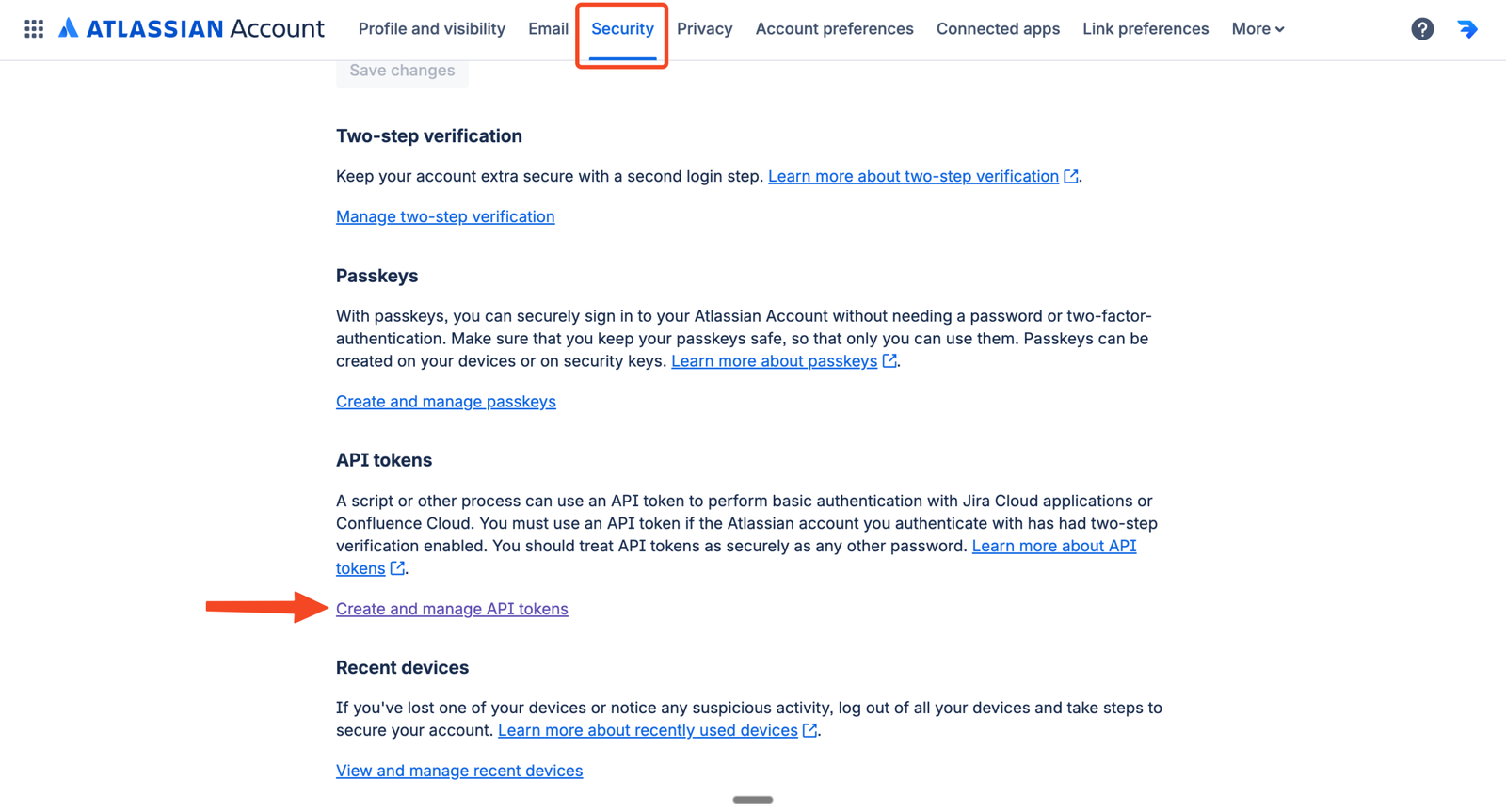
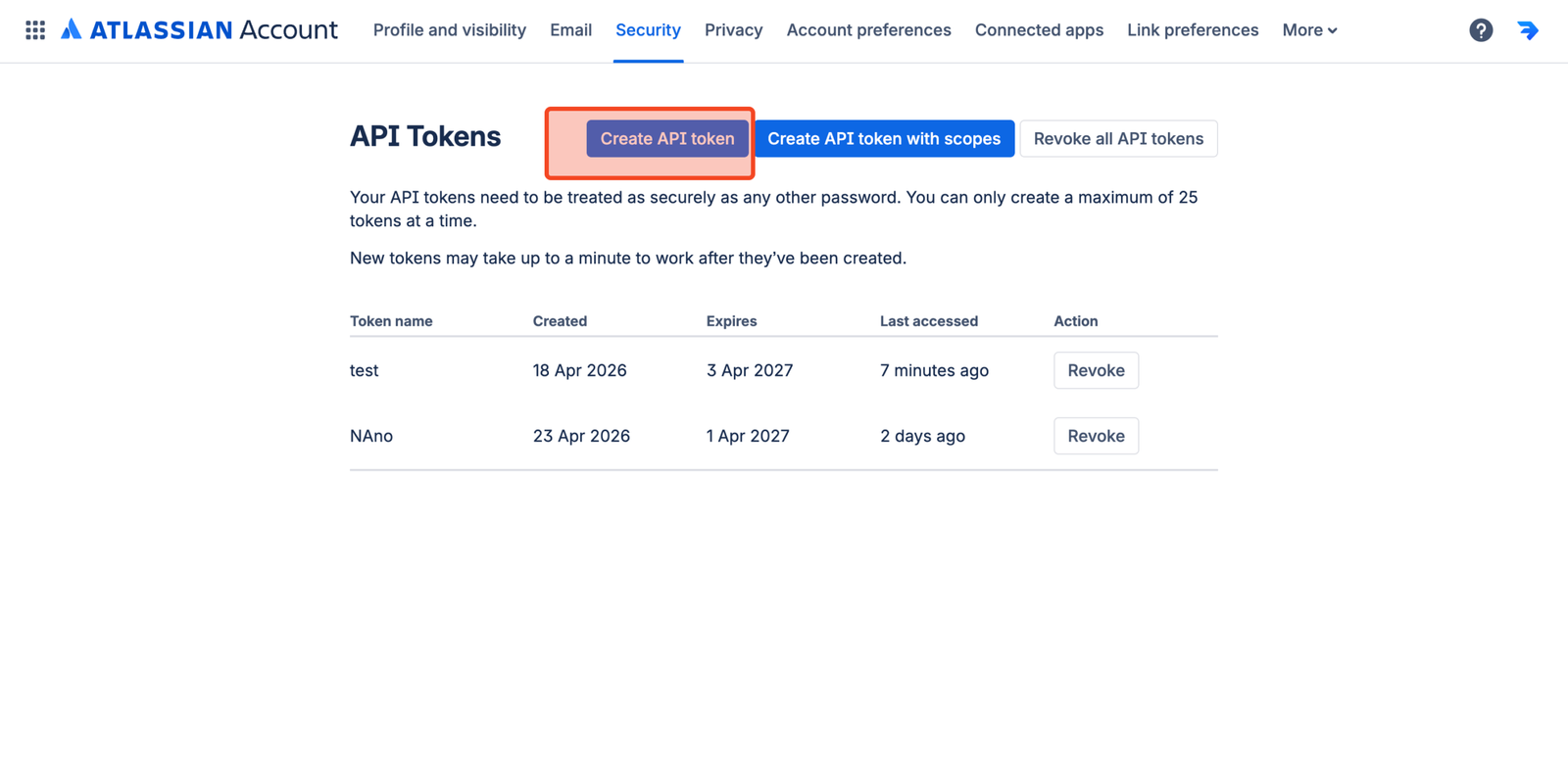
- The API token authenticates the plugin with your Confluence site
- It only needs read access — no write permissions required
- Store the token somewhere safe; you'll only see it once
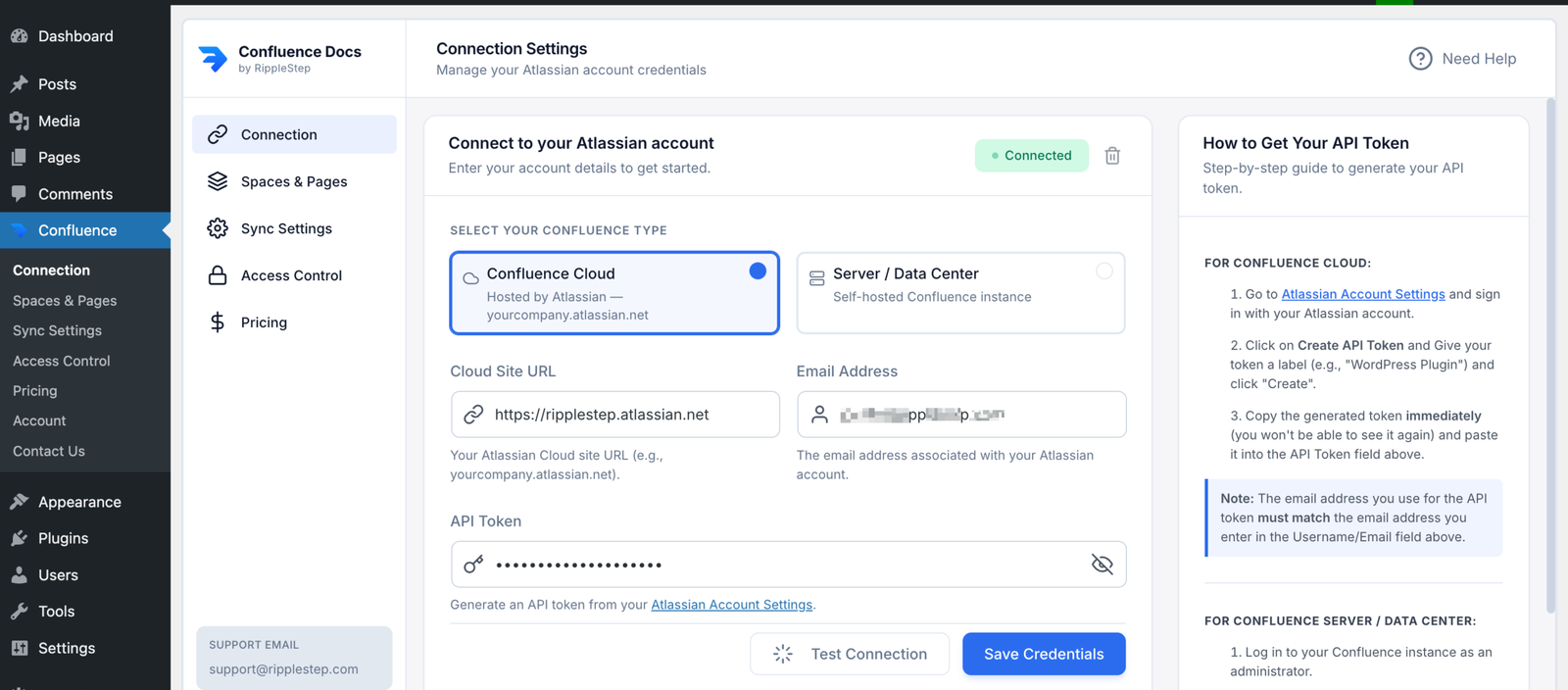
In WordPress, navigate to Content Publisher → Settings. Enter your Confluence site URL (e.g. yourteam.atlassian.net), your Atlassian email address, and the API token you just created. Click Save & Test Connection.
A green confirmation message means the plugin can reach your Confluence instance and is ready to sync.
Go to Content Publisher → Sync Configuration. Choose your Confluence space from the dropdown. The plugin lists all pages available in that space. Check the boxes next to the pages you want to publish publicly on WordPress.
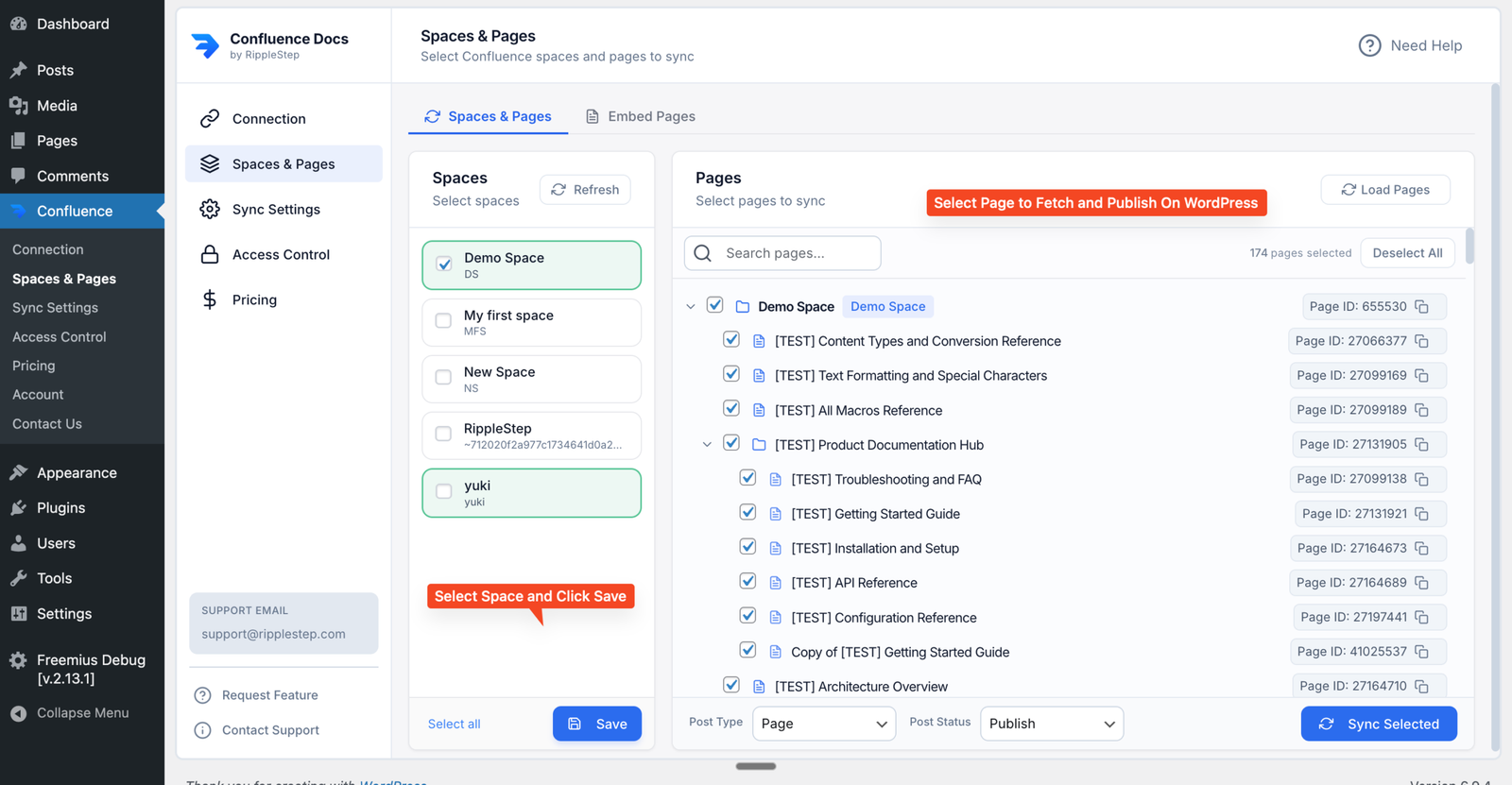
- You can publish an entire space or hand-pick specific pages
- Pages not selected stay private in Confluence — they're never exposed
- Need to publish pages from multiple spaces? That requires the Pro plan
After syncing, the plugin gives you two access-control options:
1) Global Visibility Strategy
- This setting applies access control to all pages fetched and synced from Confluence to WordPress.
- You can choose one of three modes:
- Public
- Logged In
- Restricted by Roles
2) Per-Page Override
- This lets you define access for specific individual pages.
- For each page, you can choose:
- Public
- Logged In
- Restricted by Roles
- If no per-page option is selected, the page uses the Global Visibility Strategy by default.
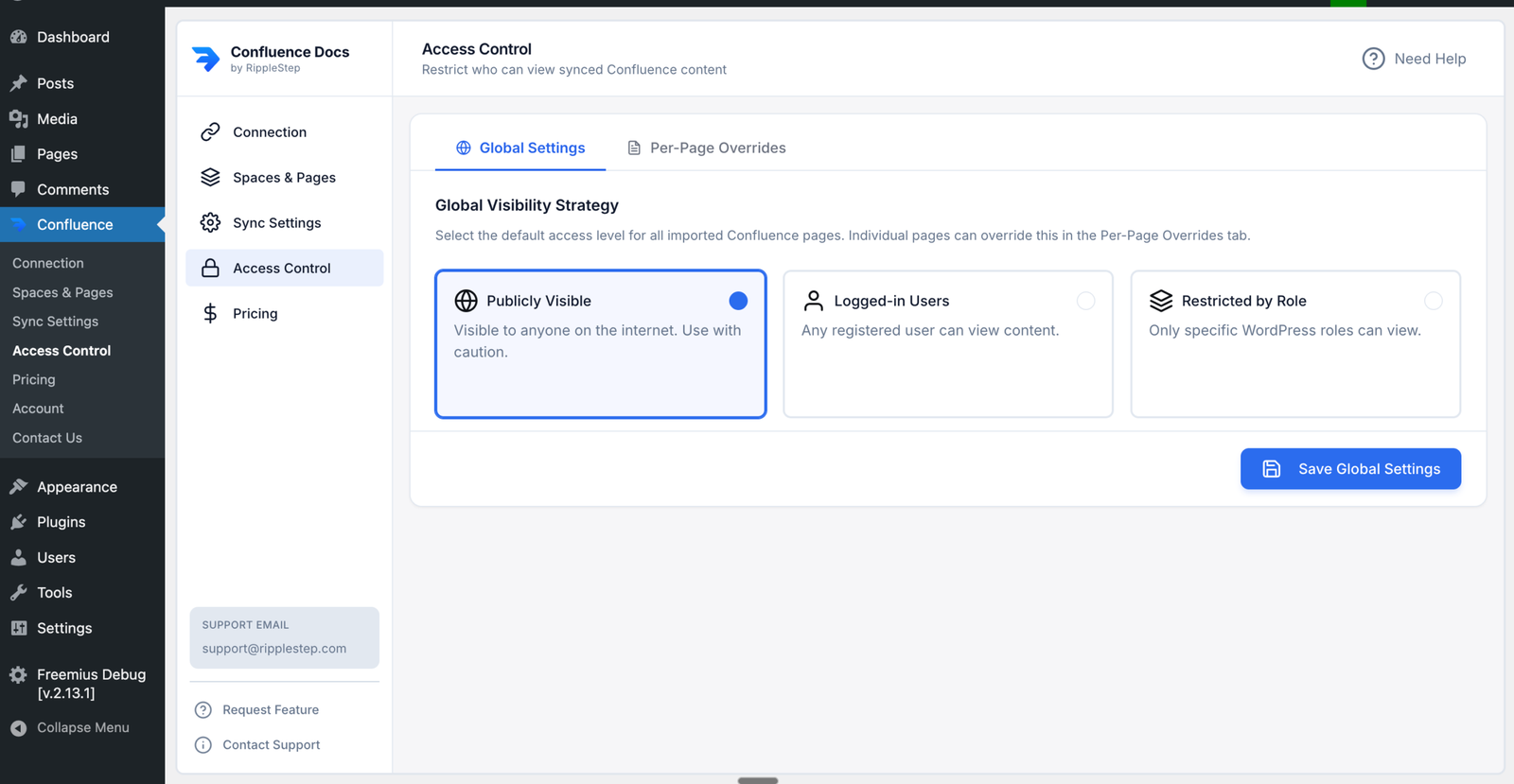
Set one global rule for all synced documentation first, then use per-page override only for exceptions. Any page without an override inherits the global setting automatically.
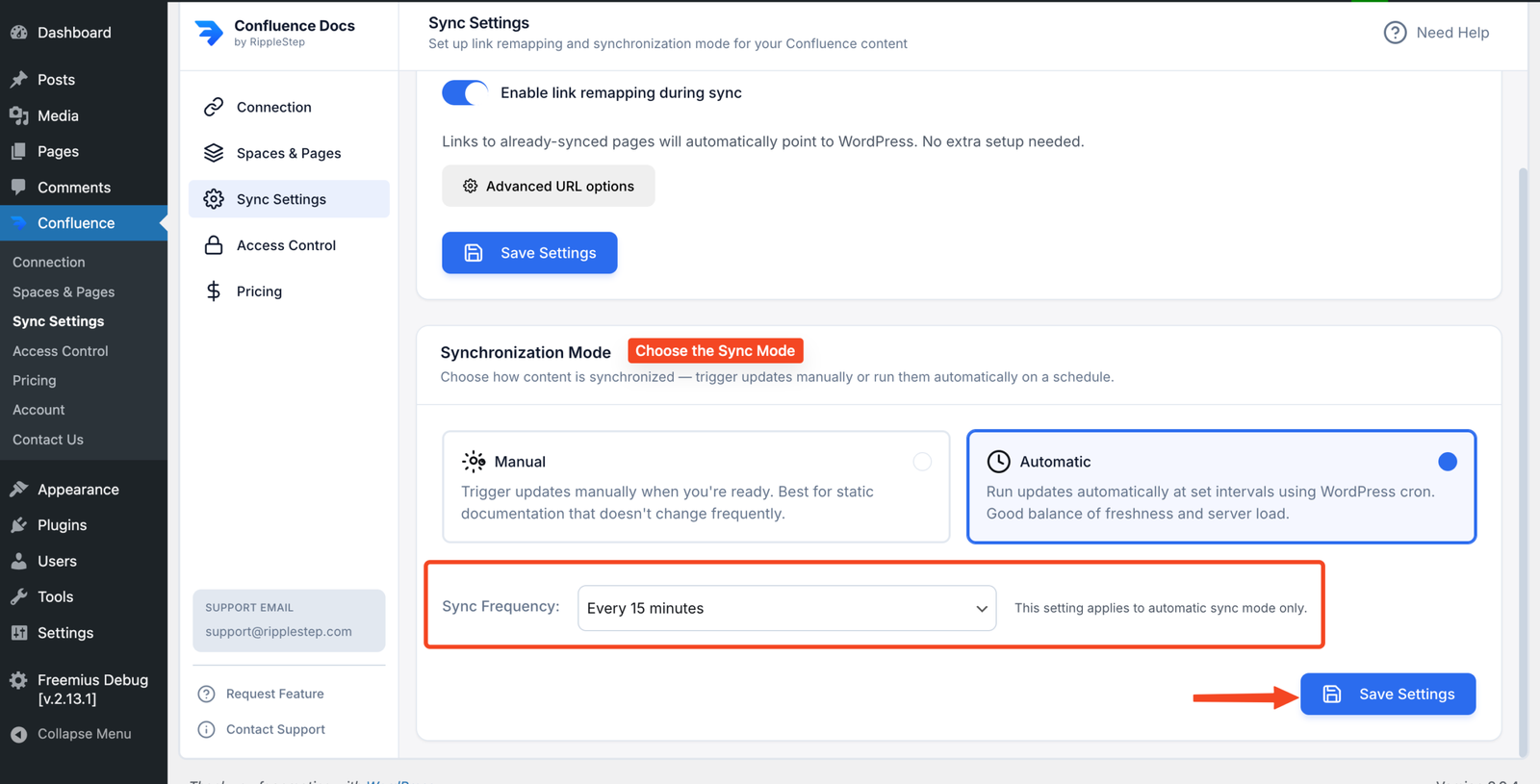
When a writer updates a page in Confluence, your WordPress site needs to pick up the change. On the free plan, click Sync Now in the plugin dashboard to pull the latest version. On Pro, set an automated sync schedule — 15 minutes, hourly, every 6 hours, or daily — so updates appear without any manual action.
Controlling What's Public and What Isn't
One of the most useful aspects of this approach is the fine-grained control it gives you over visibility. Just because a page exists in Confluence doesn't mean it has to be public on WordPress. You decide what gets synced and what WordPress visibility it gets.
Global Visibility Strategy
Set one default access rule for all pages fetched and synced from Confluence to WordPress.
- Public
- Logged In
- Restricted by Roles
Per-Page Override
Set a different access rule for specific pages when they should not follow the global default.
- Public
- Logged In
- Restricted by Roles
Use per-page overrides only for exceptions
Keep your setup easy to manage by setting one global rule first, then overriding only pages that truly need different access.
- Global first: apply one default visibility strategy to all synced pages.
- Override sparingly: use per-page access only for partner, customer-only, or internal exceptions.
- No extra plugin needed: role-based access works directly in Content Publisher for Confluence Pro.
Who This Approach Is Built For
SaaS Product Teams
Publish product docs, release notes, and API references publicly so customers can self-serve — without giving them Confluence access.
Marketing Teams
Turn internal brand guidelines and content briefs into a public-facing brand portal — still sourced from Confluence, visible to agencies and partners.
IT & Ops Teams
Publish service status pages, IT policies, and onboarding guides publicly for employees who don't have (or don't need) a Confluence license.
Developer Advocacy Teams
Write technical tutorials in Confluence and publish them to your developer portal — keeping your docs team in a familiar tool while the output lives on your domain.
Agencies & Consultants
Use Confluence for internal project documentation and expose client-facing deliverables on a branded WordPress site — no extra logins for clients.
Education & Training Teams
Build course materials and training content in Confluence, then publish them to a public or semi-private WordPress site for learners.
Free vs Pro: Which Plan Do You Need?
Start free, upgrade when you need more volume, automation, and advanced controls.
Starter
Best for small public documentation sets and initial evaluation.
- Up to 10 pages synced
- 1 Confluence space
- Manual sync only
- Basic access control
- Community support
The SEO Bonus
There's another significant advantage to publishing Confluence docs on WordPress: search engine visibility. Content on yourteam.atlassian.net does not benefit your domain's SEO. Content published on yourdomain.com does. Every help article, tutorial, and release note you publish to WordPress is a page that can rank on Google, bring in organic traffic, and reduce support volume.
WordPress also gives you control over SEO elements that Confluence doesn't: custom titles and meta descriptions, canonical URLs, structured data, internal linking, and Open Graph tags. Pair the plugin with a WordPress SEO plugin like Yoast or Rank Math, and your documentation becomes a genuine traffic asset.
Start Publishing Confluence Pages Publicly
Install Content Publisher for Confluence free. Sync up to 10 pages from a single space with no time limit. Upgrade to Pro for unlimited pages, automated sync, and per-page access control.
Install from WordPress.org →Frequently Asked Questions
Ready to publish docs without adding Confluence users?
Install the free plugin and sync your first Confluence pages to WordPress in minutes. Upgrade anytime for automated sync and advanced access control.
Install Content Publisher for Confluence Free →